Hearing hiss, crackles, or a low buzz in your recordings? You’re not alone. If you’ve ever wondered why is there static in my mic, this practical guide zeroes in on the real causes and the fastest fixes. In minutes, you’ll learn how to identify the exact noise you’re hearing—hiss, crackle, pop, or hum—and what each sound reveals about cables, gain, grounding, drivers, or nearby electronics.
We’ll start with quick five-minute checks and simple isolation tests, then move through a step-by-step workflow to separate hardware issues from software glitches. You’ll get clear guidance on inspecting and replacing bad cables, dialing in proper mic gain, eliminating ground loops and EMI, and choosing smart tools like powered USB hubs, ferrite beads, noise gates, and restoration plugins. Finally, you’ll discover how OS settings, drivers, and buffer sizes can create (or cure) digital artifacts—and how to prevent their return with clean cable routing, routine maintenance, and smart placement. By the end, you’ll stop asking why is there static in my mic and start recording clean, consistent audio.
Understanding Mic Static: Causes & Mechanisms
Why is there static in my mic is usually a question about physics as much as hardware. Static manifests as crackles, hiss, pops and hum — each with a different origin. Crackles are discrete transient bursts, hiss is a steady broadband noise, pops are sudden low-frequency spikes, and hum is a continuous tonal buzz. Understanding how electrical and acoustic systems turn tiny disturbances into audible artifacts helps you diagnose the problem faster.
How different types of static are produced
Crackles often come from intermittent contacts: loose plugs, a frayed conductor, or a failing connector that makes and breaks the circuit. Think of a light switch that arcs when toggled; each arc is a tiny electrical event you hear as a click. Hiss is like distant surf — a broadband noise from amplified thermal noise, poor shielding, or excessive preamp gain. Pops resemble the sound of a balloon burst and usually map to sudden DC offsets, cable handling, or plosives hitting the capsule.
Hum is typically a low-frequency tone — often 50/60 Hz and harmonics — produced by mains coupling into the audio path. If you’ve ever put a radio next to a refrigerator and heard a consistent buzz, that’s the same idea: a steady electromagnetic source coupling into the mic signal.
Primary electrical and mechanical causes
Electromagnetic interference (EMI) occurs when external fields induce currents in cable shields or mic circuits. Nearby phone chargers, wireless routers, or unshielded transformers are common culprits. The induced signal is then amplified and you hear it as buzzy or squeaky artifacts. This directly explains many “why is there static in my mic” cases where moving electronic equipment changes the noise.
Ground loop hum arises when different devices share multiple ground paths with small voltage differences. The loop acts like an antenna and injects a 50/60 Hz tone into the audio. A practical analogy: two people walking on slightly different floors connected by a metal rail — the rail carries unwanted motion between them. Ground loops translate that motion into audible hum.
High gain amplification magnifies tiny noises — thermal noise, contact resistance, or digital artifacts — turning them into audible hiss or crackles. If the preamp is set too hot, even minimal interference becomes obvious. Driver conflicts and software-level issues add another layer: outdated or mismatched drivers can produce digital jitter or dropouts heard as static.
Putting causes to work: how each factor sounds
Loose or oxidized contacts => intermittent crackles and clicks. EMI => broadband or tone-like interference depending on source. Ground loops => steady hum at mains frequency and harmonics. Excessive mic gain => amplified hiss and increased sensitivity to all interference. Driver or USB protocol issues on digital mics often present as periodic glitches or USB mic static. Measuring ambient levels with a noise level meter helps confirm if the source is environmental or equipment-based.
Treat each audible symptom like a clue: trace crackles to connectors and cables, hum to grounding and mains proximity, hiss to gain and shielding. That systematic approach answers most “why is there static in my mic” problems quickly and effectively.
Diagnosing Your Mic: Step-by-Step Troubleshooting Guide
Start by asking the simple question: why is there static in my mic? Follow this ordered workflow to rule out obvious causes first, then isolate hardware vs. software problems. Work calmly and test after each step so you know what change fixed the issue.
Quick physical checks (5 minutes)
These fast checks catch the majority of problems. Secure all cable connections, unplug and replug XLR or 3.5mm jacks, or reseat a USB mic. Try a different USB port and, if possible, a different cable to rule out a faulty mic cable. Move the mic at least a foot away from routers, phones, monitors, power adapters and fluorescent lights to reduce electromagnetic interference.
Simple isolation tests
Now decide if the issue is the mic or the environment. Record a 10-second clip of ambient noise with the mic positioned normally. Then record again with a closed hand over the capsule (very gently) or with the mic unplugged but the input channel active. If the static changes or disappears, it’s likely cable, connection, or nearby electronics. If it remains identical, suspect internal electronics or software settings.
Hardware vs. software checklist
- Test the mic on another computer or a phone adapter. If the static follows the mic, hardware is likely at fault.
- Try a different recording app. If static shows only in one program, check that program’s settings and any plugins.
- Disable sound enhancements and any third-party audio processing in your OS sound settings before testing further.
- If you have a USB mic, try a powered USB hub or a different USB port—some ports share power and cause USB mic static.
Decision-tree style steps (follow in order)
- If unplugging and reseating cables removes static → replace the cable and use a shielded audio cable for long runs.
- If switching USB ports removes static → use that port or connect through a powered hub; avoid front-panel ports that share controllers.
- If testing on another computer removes static → update drivers and audio interface firmware on the original machine and check for software conflicts.
- If static persists everywhere and is worse when you touch the mic or stand → internal fault; contact the manufacturer or repair service.
- If static appears only near certain devices → move the mic or the device, add distance, and test again for electromagnetic interference.
Throughout this process keep notes: what you changed, the test results, and whether the static got quieter, louder, or unchanged. If you record podcasts, use a short scripted line generated by a podcast intro script generator to run consistent tests. Asking “why is there static in my mic” becomes much easier to answer once you isolate whether the noise is environmental, cable-related, or an internal defect.
Common Fixes: Cables, Connections & Gain Adjustments
If you’ve asked “why is there static in my mic” the most frequent culprits are simple: cables, loose plugs, or gain set too high. This section walks through hands-on checks and adjustments you can do right now. Follow the order below—start with the physical cabling, then set gain staging, and finish by isolating USB or grounding issues.
Inspect and Replace Damaged or Unshielded Cables
Start by visually inspecting every cable and connector for frays, bent pins, or exposed shielding. Unshielded or low-quality cables can pick up electromagnetic interference and create persistent microphone static noise. Swap in a known-good cable, avoid cheap adapters, and test with another mic or interface if possible. A loose XLR, TRS, or USB plug often causes intermittent crackle—re-seat connectors and listen while gently wiggling the cable to reproduce the problem.
Gain Staging: Ideal dB Ranges and How to Adjust
Proper gain staging dramatically reduces background hiss and prevents clipping. For digital recording, aim for an average level around -18 dBFS with peaks no higher than -6 dBFS. On analog preamps, keep the preamp knob at or just below unity when possible and use the interface trim to fine-tune. If you hear constant hiss, lower the preamp gain and bring up the channel fader in your DAW instead. These mic gain settings keep the signal-to-noise ratio healthy without amplifying room noise.
Secure Jacks, Test Cable Quality and Connectivity
Tight connections matter. Clean contacts with electronic-grade contact cleaner if connectors appear oxidized. Replace suspect cables rather than relying on tape or temporary fixes. Use a continuity tester or multimeter to check for shorts; for USB mics, try different ports and avoid hubs that are unpowered. If swapping cables and ports eliminates the problem, you’ve identified the physical link as the source.
Powered USB Hubs, Grounding and Other Practical Tips
USB mic static can result from poor grounding or noisy USB power. A powered USB hub isolates the mic from a noisy laptop port and supplies cleaner power—this often reduces hum and digital artifacts. Also try different wall outlets, move the mic away from monitors and routers, and avoid running audio cables parallel to mains wiring. If grounding issues persist, a ground loop isolator or connecting all gear to a common power bar can help.
Quick Cable Tests and Replacement Checklist
- Visually inspect for damage and clean connector pins.
- Wiggle test: listen while moving cables to identify intermittent faults.
- Swap cables and ports to isolate the problem source.
- Use a powered USB hub for USB mics to improve grounding and power consistency.
- Replace inexpensive or unshielded leads with higher-quality shielded cables if interference persists.
- If you publish episodes, use tools like the podcast RSS feed generator to streamline delivery once your audio is clean.
If static remains after these steps, move on to driver updates, interface firmware, or shielding improvements—but fixing cables, connectors, and proper gain staging solves the majority of cases.
Advanced Solutions: Ground Loops, EMI & Noise Suppression Tools
Understanding ground loops and low-frequency hum
Ground loops occur when two pieces of equipment share multiple grounding paths, creating a tiny current that manifests as a low-frequency buzz or hum. That hum is a common answer to the question why is there static in my mic when the noise is more of a tonal rumble than random crackle. The practical fixes start with isolating the audio path: use a good-quality ground loop isolator on line-level connections, keep mic preamps and mixers on the same power circuit where possible, and replace worn connectors or cables. Shielded cables help reduce pickup of stray currents and can dramatically lower microphone static noise.
Addressing EMI and device placement
Electromagnetic interference (EMI) from phones, wireless routers, wall chargers, fluorescent lights and power supplies can create intermittent crackle that makes users ask, why is there static in my mic. Try relocating or powering down nearby devices during recording. If moving gear is not an option, attach ferrite beads to mic and power cables to suppress high-frequency EMI. Also avoid running mic cables parallel to mains wiring; cross them at right angles instead. These simple spatial changes often eliminate the tiny spikes and hiss that masquerade as a failing mic.
Hardware and in-line suppression options
For stubborn cases, invest in dedicated noise-suppression hardware. A hardware noise gate placed after your preamp will cut audio below a set threshold, removing background hiss between phrases. Inline filters and isolation transformers can remove both DC offsets and hum without touching your gain structure. For USB mics showing intermittent digital jitter or USB mic static, use a powered USB hub with a clean power source and keep USB cables short. If you run balanced XLRs, prefer metal-bodied, well-shielded connectors and consider upgrading to a higher-grade shielded cable to minimize pickup.
Plugin-based and software noise reduction
Software tools are powerful when hardware fixes aren’t feasible. Real-time noise gates in your DAW or a hardware gate eliminate constant low-level noise, while plugin-based noise reduction (spectral repair and adaptive noise profiling) can surgically remove background hiss and intermittent pops. Look for solutions that offer both real-time gating and offline restoration—this combination lets you record clean and still repair recordings afterward. When software is in use, keep mic gain settings conservative to avoid amplifying background noise unnecessarily.
Quick troubleshooting checklist
If you’re still asking why is there static in my mic, run this checklist: verify connectors and swap cables, test on another interface to rule out the preamp, move potential EMI sources and add ferrite beads, try a ground loop isolator if you hear a persistent hum, and use a noise gate or plugin for residual hiss. While you sort hardware and software, take care of smaller production items too—check your artwork and distribution assets with tools like the podcast cover art checker so the rest of your show looks as professional as the audio you’re aiming to achieve.
Driver & Software Optimization for Static-Free Audio
Why software matters
If you’ve asked “why is there static in my mic” and checked cables and grounding, don’t stop—software and drivers often cause persistent microphone static noise. Faulty or outdated drivers, incorrect sample rates, and enabled sound enhancements can introduce digital artifacts that sound like static. This section walks through targeted OS and driver fixes so you eliminate software as the source of audio interference.
Windows: update, reinstall and configure drivers
Open Device Manager, find your input device, right-click and choose Update driver. If that doesn’t help, uninstall the device and reboot—Windows will reinstall basic drivers. For USB or branded mics, use the manufacturer’s installer or firmware updater; a proper “driver update microphone” from the vendor is often superior to the generic Windows driver. If you still wonder “why is there static in my mic,” try the driver rollback or use the latest OEM drivers from the audio interface or microphone maker.
macOS: Core Audio and MIDI settings
macOS uses Core Audio; most mics work without extra drivers, but some interfaces include drivers or firmware. Open Audio MIDI Setup to set sample rate and bit depth (e.g., 48 kHz, 24-bit). If your mic shows irregularities, toggle the sample rate, then restart your DAW or system. If you ask “why is there static in my mic” on a Mac, resetting Core Audio by restarting the audio service or rebooting often clears driver-level glitches.
Sound control panel adjustments
On Windows, open Sound settings → Recording → Properties for your mic. Disable unused enhancements (check the Enhancements tab) and turn off exclusive mode if an app is monopolizing the device. Set the Default Format to a stable sample rate/bit depth that matches your project. Enabling ambient noise reduction or the “Noise Suppression” option can reduce low-level static, but don’t rely on it to mask driver problems.
Dedicated audio interfaces and driver choices
If you use an audio interface, set its sample rate and buffer size in the device control panel. Higher buffer sizes reduce clicks and static at the cost of latency. Use ASIO drivers on Windows (ASIO or ASIO4ALL) and Core Audio on macOS for lowest-latency, most stable paths. Properly configured ASIO/Core Audio drivers often answer “why is there static in my mic” when system drivers fail.
Practical checklist
- Update or reinstall OS drivers and any vendor firmware.
- Match sample rate/bit depth between system, interface, and app.
- Disable unused enhancements and exclusive app control.
- Increase buffer size in the interface control panel.
- If problems persist after these steps, test with another computer or driver to rule out hardware faults.
Preventive Best Practices for Static-Free Recording
Core investments
Start by asking the practical question: why is there static in my mic? Often the answer is gear quality. Invest in a reliable microphone and a shielded audio cable to reduce electromagnetic pickup and mechanical noise. Higher-quality capsules, connectors and preamps cost more up front but eliminate common sources of microphone static noise and deliver cleaner captures for years.
Cable management and connectors
Careful routing prevents interference and accidental damage. Run mic cables away from power lines and network cables, use secure XLR or balanced connections, and replace any frayed or oxidized leads. If you’re troubleshooting “why is there static in my mic” a faulty mic cable is often the culprit—swap cables to test quickly.
Routine cleaning and inspections
Make a habit of monthly inspections: clean connectors with contact cleaner, tighten loose jacks, and check pins for corrosion. Dust buildup and grime can create intermittent contact, which sounds like static. Regular maintenance reduces unexpected noise and extends the life of your gear.
Acoustic treatment and isolation
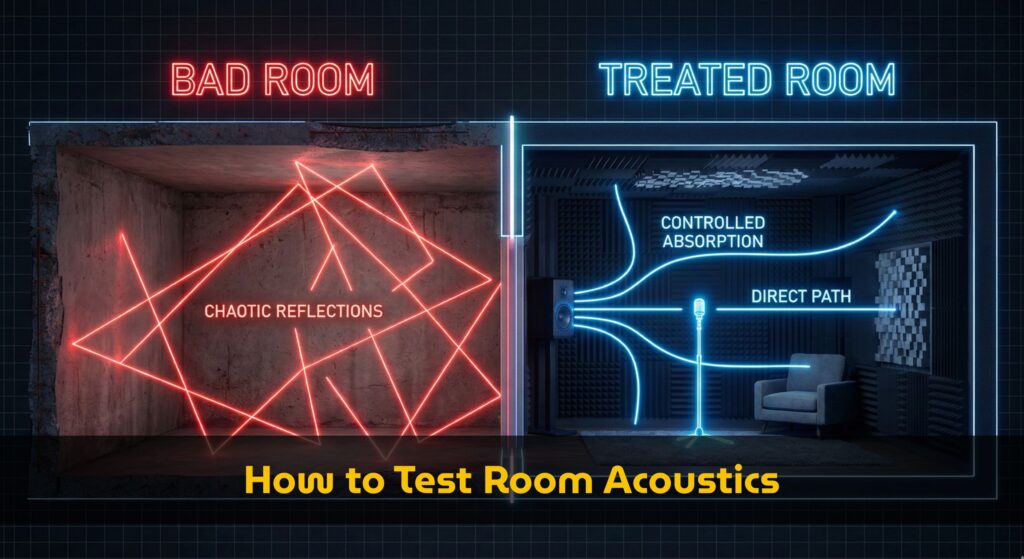
Room reflections won’t cause electronic static, but they worsen perceived noise. Add basic acoustic panels and a pop filter to reduce plosives and room hiss. Use a shock mount and a sturdy stand to minimize thumps and handling noise. Ask again, “why is there static in my mic?” — if mechanical coupling is the issue, isolation fixes it.
Optimal mic placement and gain staging
Place the mic to maximize signal and minimize background noise: closer to the source but not so close that you induce plosives. Set your preamp gain conservatively—excessive gain amplifies hiss and hum. Adjusting mic gain settings properly will often eliminate apparent static without changing hardware.
Software updates and system checks
Keep drivers and firmware current for USB and audio interfaces. Periodic driver update microphone and DAW patches prevent digital artifacts that resemble static. Schedule routine system checks: test with different inputs, mute unused channels, and run a noise gate if needed to catch residual hiss.
Long-term checklist
- Buy a quality mic and a shielded audio cable; replace cheap patch cords.
- Organize cables, use ferrite beads or balanced runs near noisy equipment.
- Clean contacts, inspect connectors, and swap suspect cables regularly.
- Implement basic acoustic treatment and use shock mounts and pop filters.
- Set proper mic gain settings and maintain firmware/driver updates.
- Run periodic system diagnostics to answer “why is there static in my mic” before it becomes a recording problem.
Conclusion
Static isn’t mysterious—it’s diagnostic. By matching the sound (hiss, crackle, pop, or hum) to its most likely cause, you can work methodically: secure and swap cables, set conservative gain, move away from EMI, break ground loops, and correct drivers, sample rates, and buffers. Those steps resolve most cases fast.
Ready to get clear audio today? Run the quick checks, follow the decision tree, and lock in preventive habits like shielding, tidy routing, and routine cleaning. If noise lingers, add a powered USB hub, ferrite beads, or a noise gate to tame the last artifacts. Share this guide with your team, bookmark the checklist, and start your next recording with confidence—no more asking why is there static in my mic.