The Ultimate LUFS Meter Online: How to Perfect Your Podcast Loudness
Have you ever published a podcast episode only to realize it sounds whisper-quiet compared to professional shows? Or worse, did Spotify forcefully turn your audio down because it was too loud?
Mastering your audio levels used to require expensive desktop software. Today, using a professional lufs meter online is the fastest way to ensure your track meets the -14 LUFS industry standard. In this 2500-word masterclass, we will decode the science of loudness, explain streaming platform algorithms, and show you how to execute a perfect podcast volume check.
If you are an independent podcaster, an audiobook narrator, or a video creator, you wear many hats. You are the host, the producer, and the audio engineer. One of the most terrifying moments in post-production is exporting your final MP3 file and wondering: “Is this loud enough?”
In the early days of digital audio, creators relied on “Peak Meters” to judge volume. This led to a massive problem known as the Loudness War, where music producers compressed their tracks to the extreme, sacrificing dynamic range just to sound “louder” than the competition on the radio.
To stop this madness, the broadcast industry introduced a revolutionary measurement: LUFS. By utilizing a reliable lufs meter online, modern creators can bypass the complexities of traditional Digital Audio Workstations (DAWs) and instantly verify their loudness compliance directly in their web browser.
Part 1: The Science of LUFS (Loudness Units relative to Full Scale)
Before you upload your file to an audio loudness analyzer, you must understand what the tool is actually measuring.
LUFS stands for Loudness Units relative to Full Scale. It is an international standard (specifically defined in EBU R 128) designed to measure perceived human loudness. Unlike traditional Peak meters that only measure the absolute electrical limit of a sound wave, LUFS analyzes the audio over time, exactly the way the human ear hears it.
Peak vs. RMS vs. LUFS: What’s the Difference?
When you open a basic lufs meter online or an advanced audio properties tool, you will see three different acronyms. Understanding the difference is crucial for a proper podcast volume check.
- True Peak (TP): This measures the absolute highest point your audio waveform reaches. If your True Peak exceeds 0.0 dB, your audio will digitally “clip” and sound distorted. Most platforms require a True Peak of -1.0 dB to leave headroom for audio conversion.
- RMS (Root Mean Square): This is the old mathematical average of your audio signal. While better than Peak, it doesn’t account for how human ears perceive different frequencies (e.g., we hear mid-range human voices louder than deep bass).
- LUFS (Integrated Loudness): This is the modern gold standard. A professional lufs meter online will measure the Integrated LUFS—the average perceived loudness of your entire podcast episode from minute 0 to minute 60.
Part 2: Why -14 LUFS is the “Magic Number”
If you search the internet for podcasting advice, you will repeatedly see the number -14 LUFS. But why?
Every major streaming platform (Spotify, Apple Podcasts, Amazon Music) uses “Loudness Normalization” algorithms. This means they have an internal “target loudness.” When a listener transitions from an explosive Joe Rogan episode to your quiet indie podcast, they shouldn’t have to touch their volume dial.
Spotify Podcasts
If your episode is -20 LUFS, Spotify will digitally boost it (sometimes raising the background noise). If it is -10 LUFS, Spotify will aggressively turn it down using a limiter.
Apple Podcasts
Apple officially recommends -16 LUFS. However, because Spotify strictly demands -14 LUFS, the industry standard has settled on -14 LUFS to -16 LUFS as the universal sweet spot for spoken word.
⚠️ Why Is My Podcast Quiet on Spotify?
If you exported your episode without using an audio loudness analyzer, it might be sitting at -24 LUFS. When Spotify plays it next to a -14 LUFS track, your show will sound incredibly faint, frustrating listeners who are driving or running. Running a quick podcast volume check ensures you never lose a listener due to low volume. (Read our full guide on Why Your Podcast Sounds Quiet on Spotify).
Part 3: Why Use a LUFS Meter Online? (The Browser Advantage)
Historically, achieving perfect loudness required buying expensive desktop plugins like iZotope Ozone or Waves L2, and learning how to route them inside Logic Pro or Adobe Audition.
Today, a lufs meter online changes everything for independent creators. Here is why you should integrate a web-based loudness preview tool into your publishing workflow:
- Zero Installation: You don’t need to install heavy VST plugins. A lufs meter online runs natively in Chrome, Safari, or Edge.
- Local Processing Privacy: Our PodTools Volume Normalizer (Preview) uses your browser’s internal engine to scan the audio. Your 1GB unreleased interview file is never uploaded to a remote server. It is 100% private and instant.
- Actionable Data: Instead of just showing you a confusing graph, an intelligent audio loudness analyzer will explicitly tell you: “Your track is -19 LUFS. You need a Gain of +5 dB to hit the -14 LUFS target.”
Part 4: How to Perform a Podcast Volume Check (Step-by-Step)
Ready to ensure your audio is broadcast-ready? Here is the exact workflow you should follow right before you upload your MP3 to your podcast hosting platform.
Step 1: Finalize Your Edit
Complete all your cuts, EQ, and noise removal. If you need to stitch your intro and outro together first, use our free Audio Joiner tool. Export your final track as an MP3 or WAV file.
Step 2: Load the LUFS Meter Online
Navigate to the PodTools Audio Loudness Analyzer. Drag and drop your audio file into the drop zone. Because it processes locally, the file will be analyzed in seconds, regardless of your internet connection speed.
Step 3: Analyze the Results
The lufs meter online will scan the entire file and present three crucial numbers:
- Current Loudness: (e.g., -19.5 LUFS)
- True Peak: (e.g., -3.2 dB)
- Gain Needed: (e.g., +5.5 dB)
Step 4: The Loudness Preview
This is where our loudness preview tool shines. It applies a real-time digital volume boost directly in your browser. Click “Play” to hear what your normalized audio sounds like. Why is this important? Because boosting your voice by +5.5 dB will also boost your background noise. If you hear a sudden hiss, you may need to use our Noise Level Meter and re-apply a noise gate in your editor.
Part 5: How to Fix Audio Levels Automatically
Once the lufs meter online tells you that you need a “+5.5 dB Gain,” how do you actually apply it?
The Manual Way (Using your DAW)
Go back into Audacity, GarageBand, or Premiere Pro. Select your entire master track, open the “Amplify” or “Gain” effect, and type in “+5.5 dB”. Export the file again. Your track is now perfectly calibrated to -14 LUFS. You can also use our Audio Duration Calculator as a final check to ensure file size limits are respected.
The Automated Way (Using Make)
🚀 Build a Podcast Automation Workflow
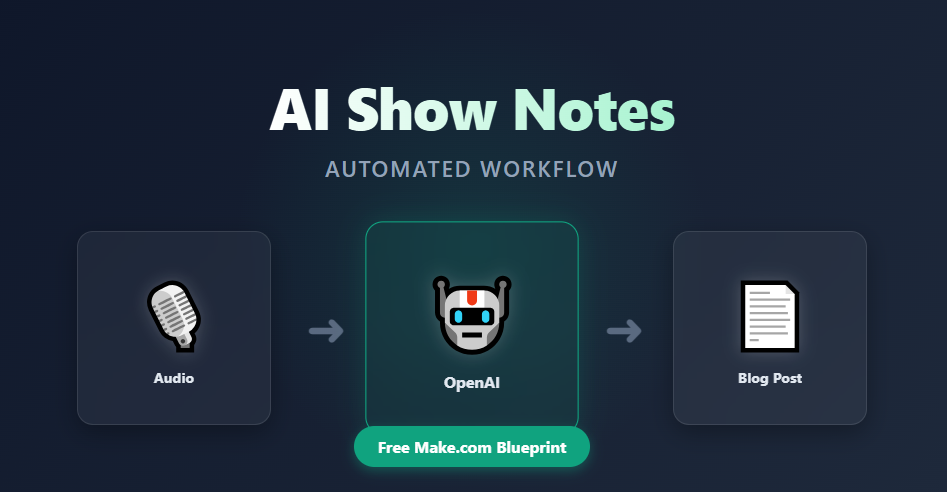
If checking levels manually every week feels tedious, you can automate your entire post-production pipeline. By utilizing integration platforms like Make, you can set up a system that automatically catches your raw recording, routes it to an AI normalization API (like Auphonic), and delivers a perfect -14 LUFS MP3 directly to your Google Drive.
Try Make for Free to Automate Loudness →Before automating, we always recommend creators spend a few weeks using a lufs meter online manually. Understanding the science behind your podcast volume check makes you a significantly better audio producer.
Frequently Asked Questions (FAQ)
What is a good loudness for a podcast volume check?
Most major streaming platforms (Spotify, Apple Podcasts, Google) recommend a target of -14 LUFS to -16 LUFS. Using a lufs meter online helps you hit this exact target. If your audio is quieter (e.g., -24 LUFS), it will sound faint and unprofessional. If it is louder (e.g., -9 LUFS), platforms will forcefully compress and turn it down, which can ruin your dynamic range.
How does this audio loudness analyzer work without uploading?
Our audio loudness analyzer leverages the Web Audio API built into modern browsers (Chrome, Safari, Edge). It decodes your audio file securely inside your computer’s RAM, calculating the RMS, Peak, and LUFS values instantly. Because the file never transmits over the internet to our servers, it is incredibly fast and guarantees 100% data privacy.
Why is this a loudness preview tool and not an exporter?
This specific loudness preview tool is designed for rapid auditing. It applies a real-time digital gain boost so you can hear what the normalized track will sound like. This is vital because boosting a quiet track also boosts background hiss. Hearing it first allows you to decide if you need to go back and apply noise reduction. (Note: According to our 2026 roadmap, direct downloading of normalized audio will be enabled soon).
Can a lufs meter online fix True Peak clipping?
A lufs meter online diagnoses the problem, but to fix True Peak clipping (audio exceeding 0.0 dB), you must use a “Limiter” effect in your audio editing software. Set your limiter’s ceiling to -1.0 dB to ensure your audio never distorts when converted to MP3 by podcast hosting platforms.
Stop Guessing Your Audio Levels
A professional podcast requires professional loudness. Make sure you hit -14 LUFS every single time before you hit publish. Use our secure, instant lufs meter online to audit your next episode.
Run Audio Loudness Analyzer →