You’ve finished editing your podcast. It sounds good on your headphones. But will it sound good in a noisy car? Or will listeners have to crank the volume up to 100% just to hear you?
Don’t guess. Use a podcast volume check online tool to measure your audio against Spotify and Apple Podcast standards.
Analyze Your Audio Levels Instantly
Our free online tool checks 3 critical metrics in your browser:
No file upload to server. 100% Private.
The Old Way vs. The Smart Way
Why use an online tool instead of just adjusting the volume knob in your editor?
- Relies on your ears (unreliable).
- Risk: You might make it too loud and cause distortion (clipping).
- Risk: You might make it too quiet for mobile phones.
- Requires expensive plugins (e.g., Izotope).
- Relies on math (ITU-R BS.1770 algorithm).
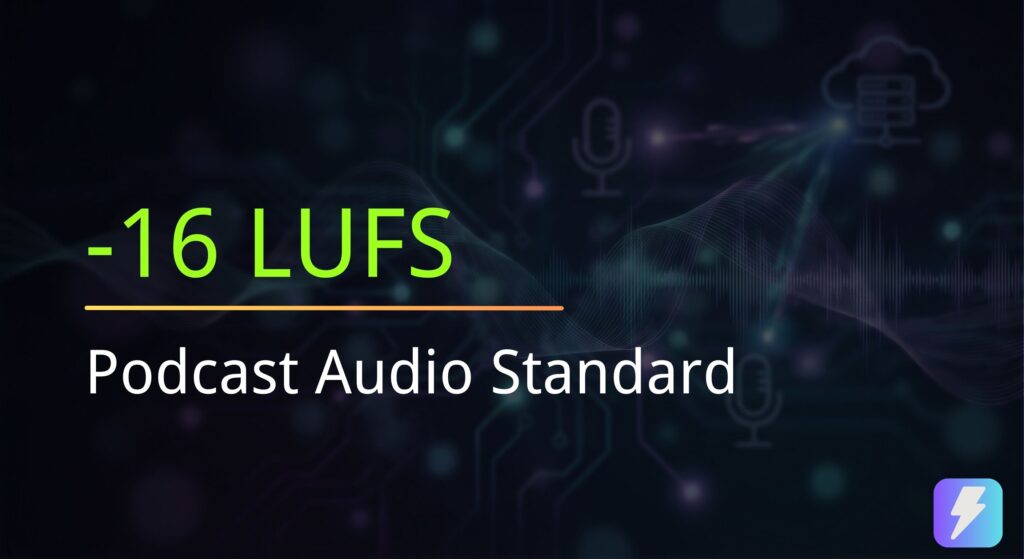
- Safe: Calculates the exact gain needed to hit -14 LUFS.
- Fast: Analyzes the whole file in seconds.
- Free: No software installation needed.
How to Check & Fix Your Levels Online
Step 1: Upload Your Final Mix
Go to our Loudness Analyzer. Drag and drop your MP3 or WAV file. The tool processes the audio locally on your device, so it’s extremely fast.
Step 2: Read the Diagnosis
The tool will give you a “Traffic Light” result:
- Red (Too Loud): Above -13 LUFS. Spotify will turn you down.
- Yellow (Too Quiet): Below -17 LUFS. Listeners might struggle to hear.
- Green (Perfect): Between -14 and -16 LUFS. You are ready to publish!
Step 3: Download the Fix (New Feature)
If your audio is too quiet, you don’t need to go back to your editing software. Our tool calculates the difference (e.g., “Gain Needed: +4.2 dB”) and allows you to download a normalized version immediately.
Common Questions
Is this podcast volume check online tool accurate?
Yes. It uses the industry-standard ITU-R BS.1770-4 algorithm, which is the exact same standard used by Spotify, Apple, and broadcast television.
Why can’t I just use “Normalize” in Audacity?
Audacity’s default “Normalize” often looks at Peak levels, not Loudness (LUFS). This means a single loud clap can trick Audacity into thinking the whole episode is loud, leaving the rest of your speech too quiet. Our tool measures the average loudness.