You spent hours designing the perfect podcast cover art. It looks great on Apple Podcasts and Spotify. But then, a listener downloads your episode, plays it in their car via Bluetooth, or opens it in a generic audio player… and sees a blank screen or a generic music note icon.
The Panic Moment: Did you upload the wrong file? Is your RSS feed broken?
The Solution: No, your RSS feed is likely fine. The problem is your ID3 Tags (Metadata).
In this guide, we will explain why this happens and provide a free, no-signup tool to fix it instantly.
The “Dirty Secret” of Podcast Hosting
Most modern podcast hosts (like Buzzsprout, Libsyn, or Spotify for Podcasters) do a great job of pushing your cover art to the platforms. When someone streams from Spotify, the app pulls the image from your RSS feed.
However, they often do not embed that image into the actual MP3 file itself.
Why does this matter?
- Car Stereos: Often read the file directly, not the RSS feed.
- Direct Downloads: If a listener downloads your MP3 to their computer, it has no connection to the RSS feed anymore.
- Social Sharing: Sending an MP3 file via Telegram or WhatsApp will lose the cover art if it’s not embedded.
To ensure your branding is visible everywhere, you must edit the ID3 Tags.
How to Fix It (The Free Way)
You don’t need to download iTunes (which is now Music app and harder to use) or expensive audio software just to tag a file. We built a secure, browser-based tool specifically for this.
Step 1: Use the PodTools ID3 Editor
Go to our Free Online ID3 Editor .
- Privacy Note: Your audio works entirely in your browser. We do not upload or store your files on our server.
Step 2: Upload Your MP3
Drag and drop your finished podcast episode into the box. You will likely see that the “Cover Art” section is empty.
Step 3: Add Your Artwork and Metadata
- Title: Episode Name.
- Artist: Your Podcast Name or Host Name.
- Album: Your Podcast Show Name.
- Cover Art: Upload your 3000x3000px JPG or PNG image.
Step 4: Download
Click “Process” or “Download”. You now have a universally compatible MP3 file.
3 Common Mistakes with Podcast Metadata
Even with ID3 tags, things can go wrong. Avoid these common errors:
1. Image File Too Large
While Apple recommends 3000x3000px, try to keep the file size under 500kb. Huge images embedded in MP3s increase the file size unnecessarily, causing buffering issues for listeners.
2. Wrong Image Format
Always use JPG or PNG. Never use WebP or TIFF for ID3 tags, as older players cannot read them.
3. Ignoring the “Loudness” Standard
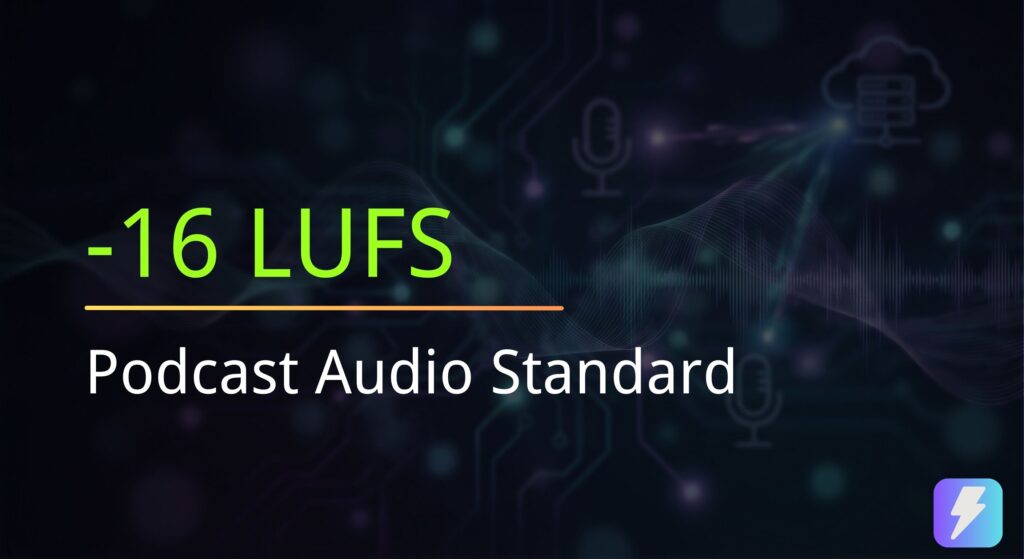
Metadata is visual, but don’t forget the audio. A professional podcast should be mastered to -16 LUFS (stereo) or -19 LUFS (mono).
- Not sure if your audio is loud enough? Check it with our Free Audio Analyzer (LUFS Checker)
FAQ: Podcast Metadata
Q: Does MP3 metadata affect SEO?
A: Indirectly, yes. While Google searches your show notes, proper metadata ensures your podcast looks professional when shared manually. A professional look leads to higher click-through rates.
Q: Can I edit tags after publishing?
A: You can, but you would need to replace the audio file on your podcast host. It’s best to make this part of your workflow before you upload.
Q: Do I need to do this for every episode?
A: Yes. We recommend making it the final step of your production checklist: Export -> Check LUFS -> Tag ID3 -> Upload.