Podcast Loudness Spotify: Why Your Episode is Too Quiet
Stop turning up the volume knob. Learn how to master LUFS and fix your audio levels so your show sounds as professional as the ‘Joe Rogan Experience’.
You just uploaded your latest episode. You hit play on your phone, excited to hear your hard work come to life. But immediately, you find yourself reaching for the volume knob. Your voice sounds weak, distant, and significantly quieter than the top charting shows. This is a clear indicator that your podcast loudness Spotify settings are fundamentally off.
You panic. Did you record it wrong? Is your microphone broken? Did you export the wrong file format?
The answer is likely No. The problem isn’t your recording gear; it is a hidden algorithmic process known as Loudness Normalization. When dealing with podcast loudness Spotify does not simply play the file exactly as you uploaded it. It analyzes it, calculates the average volume, and adjusts it according to strict internal rules.
In 2026, you cannot simply “make it loud” by turning up the master fader. You must hit specific LUFS targets. If you miss them, the platform will punish your audio. In this comprehensive guide, we will explore exactly why your podcast loudness Spotify playback is suffering, and how to fix it using free tools.
1. The Hidden Penalty: Podcast Loudness Spotify Normalization
To understand your audio dilemma, you first need to understand the concept of normalization. Streaming giants all use a process called Loudness Normalization. Their ultimate goal is user experience: they want to ensure listeners don’t have to constantly adjust their volume when switching between different spoken-word shows.
They measure your audio using a scientific unit called LUFS (Loudness Units Full Scale). Unlike older measurements like Peak or RMS, LUFS measures human perception. It calculates how loud an average human ear *feels* the audio is over the duration of the entire episode. If you ignore this metric, your podcast loudness Spotify results will be wildly unpredictable.
2. Understanding the -14 LUFS Spotify Standard
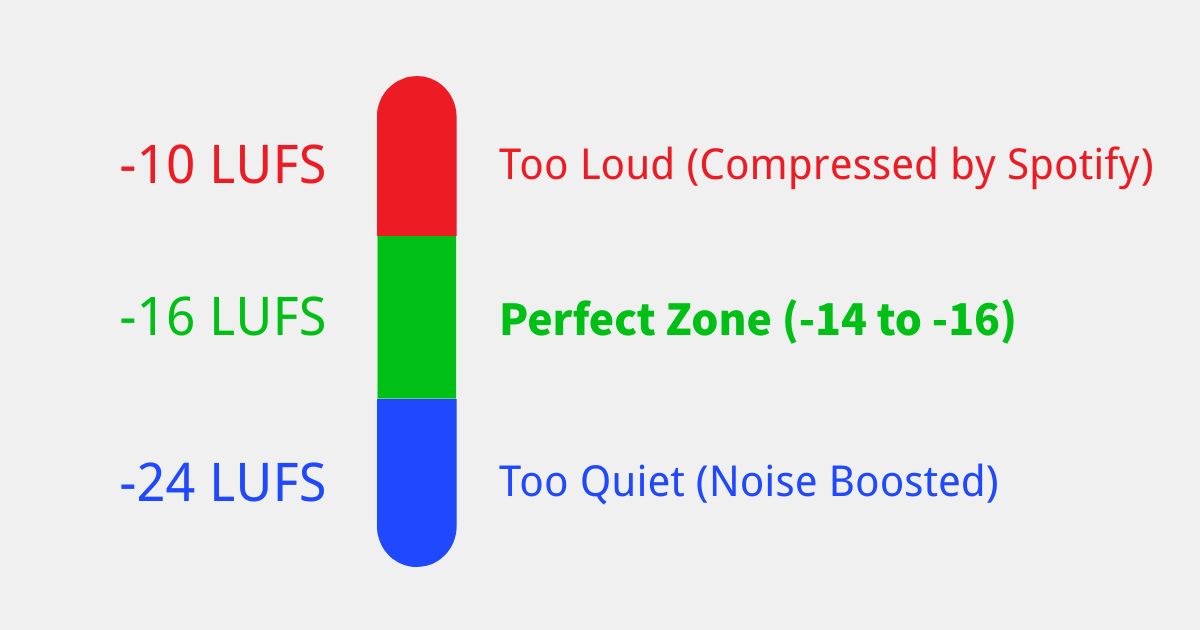
When engineering your master file, the ultimate podcast loudness Spotify target is -14 LUFS for stereo tracks. This is the magic number built into their playback algorithm according to the official Spotify audio guidelines. Let’s break down what happens when you miss this target:
- If you are too loud (e.g., -10 LUFS): Spotify will forcefully turn you down. This limits your dynamic range, destroys your transients, and can make your audio sound “squashed” or lifeless.
- If you are too quiet (e.g., -24 LUFS): Spotify will try to turn you up using a limiter. The problem? This artificial gain boost also turns up your background noise, room echo, and microphone hiss.
The bottom line is simple: To sound professional, you need to upload a file that is already mastered to the correct LUFS level. If you want a deep dive on the technical specifications, read our dedicated breakdown where we have podcast loudness standards LUFS explained in detail.
3. Hardware vs. Software: The Noise Floor Issue
Before we jump into software fixes for your podcast loudness Spotify problem, we must address the hardware. A common mistake creators make is assuming software limiters can fix a bad recording environment.
4. Step 1: Diagnose Your Audio (Don’t Guess)
You cannot fix what you cannot measure. When trying to correct your podcast loudness Spotify algorithms demand precision. We built a free, privacy-first tool that runs directly in your browser.
Test Your Audio Volume Now
Stop guessing. Drop your MP3 or WAV file into our secure scanner.
Open Free Podcast Audio Analyzer →How to use the diagnostic tool:
- Export your final MP3 or WAV file from your editing software.
- Drag and drop the file into the analyzer.
- Look strictly at the “Integrated LUFS” metric.
If you want a detailed frequency breakdown, run your file through our advanced LUFS meter online audio analyzer. Both tools will give you the precise data needed to master your podcast loudness Spotify output.
5. Step 2: Fix Your Podcast Loudness Spotify Levels in Your DAW
If the analyzer reports that your track is sitting at -24 LUFS, your podcast loudness Spotify presence is going to be incredibly weak. You must use a combination of Compression and a True Peak Limiter.
Method A: Audacity (Free)
- Open your finished mix in Audacity.
- Navigate to the top menu: Effect > Volume and Compression > Loudness Normalization.
- In the dialog box, set the “Perceived Loudness” target to -16 LUFS. (We aim for -16 instead of -14 to perfectly balance Apple and Spotify requirements).
- Click Apply.
Method B: Using AI for Perfect Mastering
In 2026, artificial intelligence can solve your podcast loudness Spotify issues with a single click. AI mastering tools analyze your entire audio file, balance the EQ, and lock the loudness to the exact streaming standards. Browse our updated best free AI podcast tools list to find the right software.
Summary: The Final Pre-Upload Checklist
Do not let algorithmic normalization ruin your hard work. Nailing your podcast loudness Spotify targets is the easiest way to instantly elevate your show from “amateur” to “professional.” Analyze your audio, verify the -14 to -16 LUFS target, apply normalization if needed, and confidently distribute your show to the world.