How to Fix Bad Audio for Free Online:
The Ultimate Adobe Podcast Enhance Review
Can this browser-based tool really make a phone recording sound like a studio microphone? We stress-tested 50 hours of terrible audio to see if Adobe’s AI lives up to the hype.
Updated: 2026 | By The PodTools Audio Engineering Team
Disclosure: This review is based on independent forensic audio testing. We use affiliate links for some paid alternatives mentioned.
⏱️ The Quick Verdict: Is Adobe Podcast Enhance Good?
Yes, but with a major catch. Adobe Podcast Enhance is a phenomenal, free AI tool for rescuing completely ruined audio (heavy echo, loud background noise, phone recordings). However, because it uses voice synthesis to “re-speak” your words, it can introduce robotic artifacts and lisps. It is best used as a last resort rather than a daily audio filter.
Every podcaster, YouTuber, and video editor has been there. You record what you think is a perfect interview, only to listen back and realize you sounded like you were trapped in a bathroom, or the wind was actively destroying your microphone capsule.
In the past, to fix bad audio, you needed a $300 forensic plugin suite and a four-year degree in audio engineering to gently EQ the dialogue.
Enter Adobe Podcast Enhance. Released as a free web-based tool, it promises to solve all acoustic problems with one single click. If you are looking for an honest, real-world tutorial, you are in the right place. Does it make your voice sound “fake”? And what happens when you hit the dreaded free tier limits?
This comprehensive guide is the only resource you need to master this software, avoid its robotic pitfalls, and discover when to use better alternatives.
How to Use Adobe Podcast Enhance (Step-by-Step)
If you have never used this platform before, the process is incredibly straightforward. You do not need to download any software.
- Create a Free Account: Navigate to the official website and sign in.
- Upload Your File: Drag and drop your audio file. (Note: The free tier only accepts MP3 and WAV files).
- Wait for AI Processing: Once your file is inside the dashboard, the servers will analyze it. This usually takes about 1 to 3 minutes.
- Preview and Download: Toggle the “Enhance Speech” switch to hear the difference before downloading your fixed audio.
Can This AI Make a Phone Recording Sound Like a Studio?
To answer this definitively, we didn’t just listen casually; we conducted a Forensic Audio Stress Test using different types of compromised audio to see where its true power shines.
🧪 Test #1: The “Bathroom” Reverb
PASS: 9/10Scenario: Recorded on an iPhone 15 Voice Memo app in a fully tiled bathroom. Extremely high reverb and noticeable background hiss.
Verdict: This is where Adobe’s AI is unmatched. Removing echo is historically the hardest thing to do in audio engineering. It deleted the room reflections completely, making it sound like it was recorded on a $100 USB mic in a treated room.
*Note: If you want to fix your room physically, read our guide on how to test room acoustics natively.
🧪 Test #2: The Coffee Shop Chaos
WARNING: 6/10Scenario: Recorded in a busy Starbucks with loud background chatter.
Verdict: When the background noise was louder than the speaker’s voice, the algorithm got confused. It attempted to “guess” the words, resulting in the speaker sounding like a malfunctioning robot.
⚠️ Why Does the Audio Sound Robotic?
Understanding the underlying technology will make you a significantly better editor. This is NOT a traditional “Noise Gate” or “EQ” tool.
Traditional plugins subtract bad noise. This vocal enhancer does something radically different: It hallucinates good audio.
It utilizes a Speech Synthesis neural engine built upon complex speech enhancement algorithms. It transcribes your bad audio in real-time, and then re-speaks it using a clean AI voice model.
- The “Lisp” Effect: It sometimes guesses wrong on high-frequency sibilant sounds like “S” and “T”, creating a lisp.
The Hidden Catch: Free Tier Limits (2026)
If you are searching for the exact adobe podcast enhance limit, here is the definitive breakdown for the current free tier.
🛑 Free Plan Limitations
- Duration Limit: 30 Minutes per individual file.
- Daily Limit: 1 Hour total processing allowed per day on the free plan.
- THE FATAL FLAW: On the web application, you cannot adjust the strength. It is locked at 100%.
How to Bypass the Limits?
Because the service is cloud-based, you can upgrade to an Express Premium subscription, which is integrated into the broader Adobe Creative Cloud ecosystem. This unlocks bulk uploading and the crucial “Strength Slider”.
Comparison: Is There a Better AI Alternative?
How does it compare to specialized, paid AI editors designed specifically for podcasters?
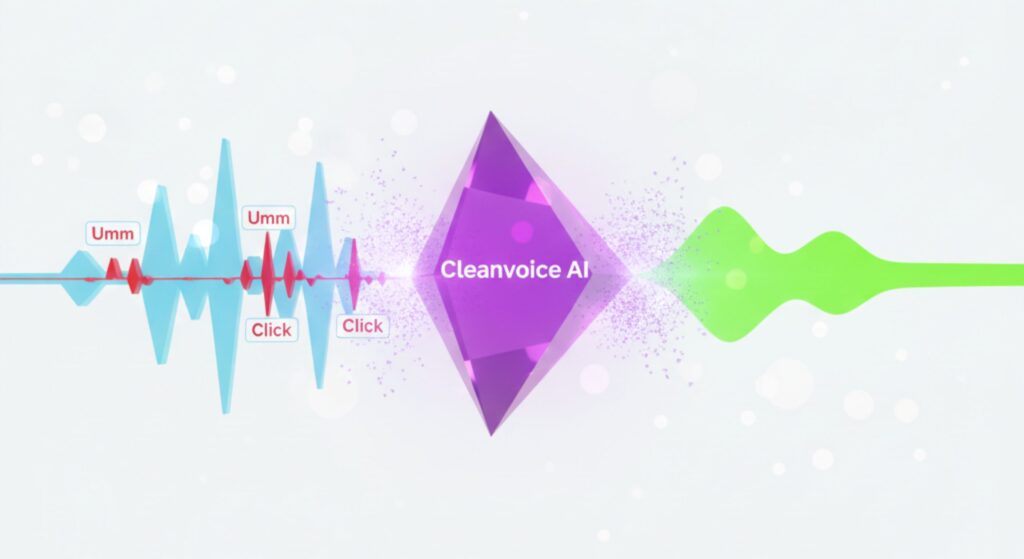
| Feature | Adobe Podcast Enhance (Free) | Cleanvoice AI (Paid) |
|---|---|---|
| Technology Type | Voice Synthesis | Noise Removal |
| “Robot” Artifact Risk | High | Low |
🚀 The “Pro” Workflow: Fixing the Robot Voice
If you are forced to use the free version and absolutely hate the robotic sound, here is a secret post-production technique.
The “Parallel Processing” Hack
- Step 1: Keep your Original bad recording on Track 1.
- Step 2: Upload it to Adobe Podcast Enhance and place the fixed version on Track 2.
- Step 3: Line them up perfectly so the waveforms are synced.
- Step 4: Lower the volume of Track 1 to -15dB to add human breath back into the mix.
Critical Next Step: If your audio still lacks high-end crispness, do not run it through the AI again. Instead, read our guide on 5 manual EQ fixes to cure muffled podcast audio. Finally, always check your export through our LUFS Loudness Analyzer.
Frequently Asked Questions
Can I fix bad audio without Adobe Podcast Enhance?
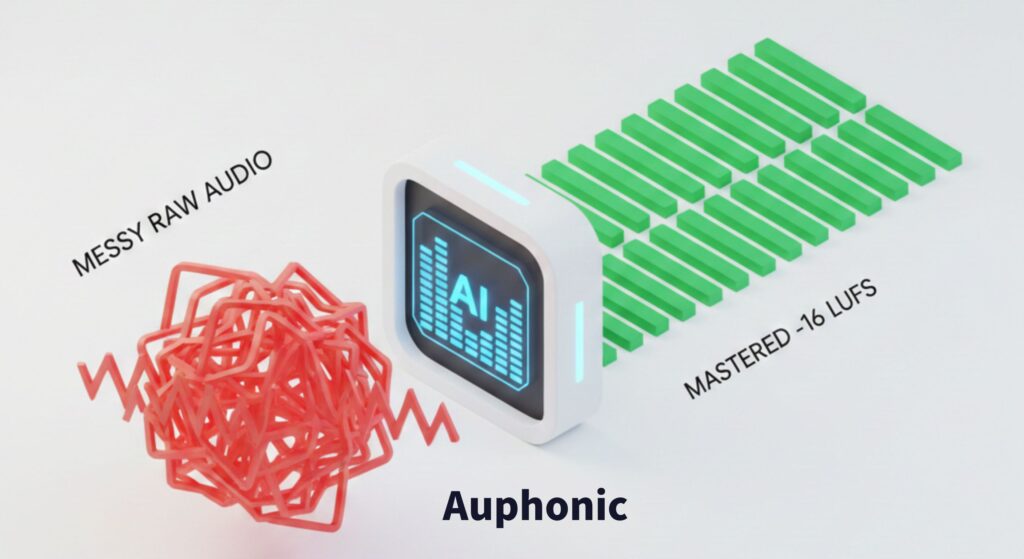
Yes. Auphonic offers 2 hours of completely free processing per month and is excellent for leveling loudness without causing the robotic lisp effect.
Does Adobe Podcast Enhance work on video files (MP4)?
Not directly on the free web version. You must convert your MP4 to a WAV or MP3 before uploading.
Is Adobe Podcast Enhance safe for confidential audio?
If you are recording legally sensitive data or unreleased IP, do not use the free web version. Use offline, local processing tools instead.