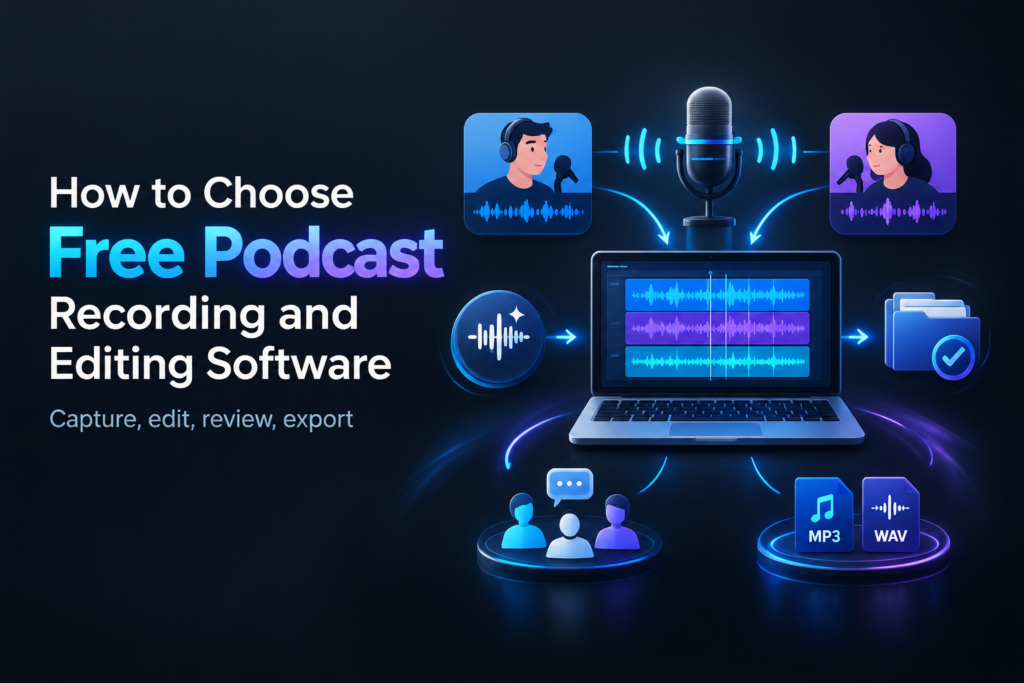
Free podcast recording software is not one category. It includes free open-source desktop applications, browser tools with restricted free plans, remote recording studios, and publishing platforms that do not replace recording or editing. For a startup team, the right choice is the tool that removes the most expensive source of friction: unreliable local capture, difficult guest onboarding, poor Chromebook compatibility, slow editing, or locked-down exports.
This buyer-oriented guide compares the workflow rather than pretending every product serves the same job. It covers solo shows, remote interviews, Chromebook and Windows 10 compatibility, video podcasts, integrated editing, privacy, and the limits that can turn a free plan into a production bottleneck. If you want to compare recording and editing as one decision, start with our guide to choosing free podcast recording and editing software.
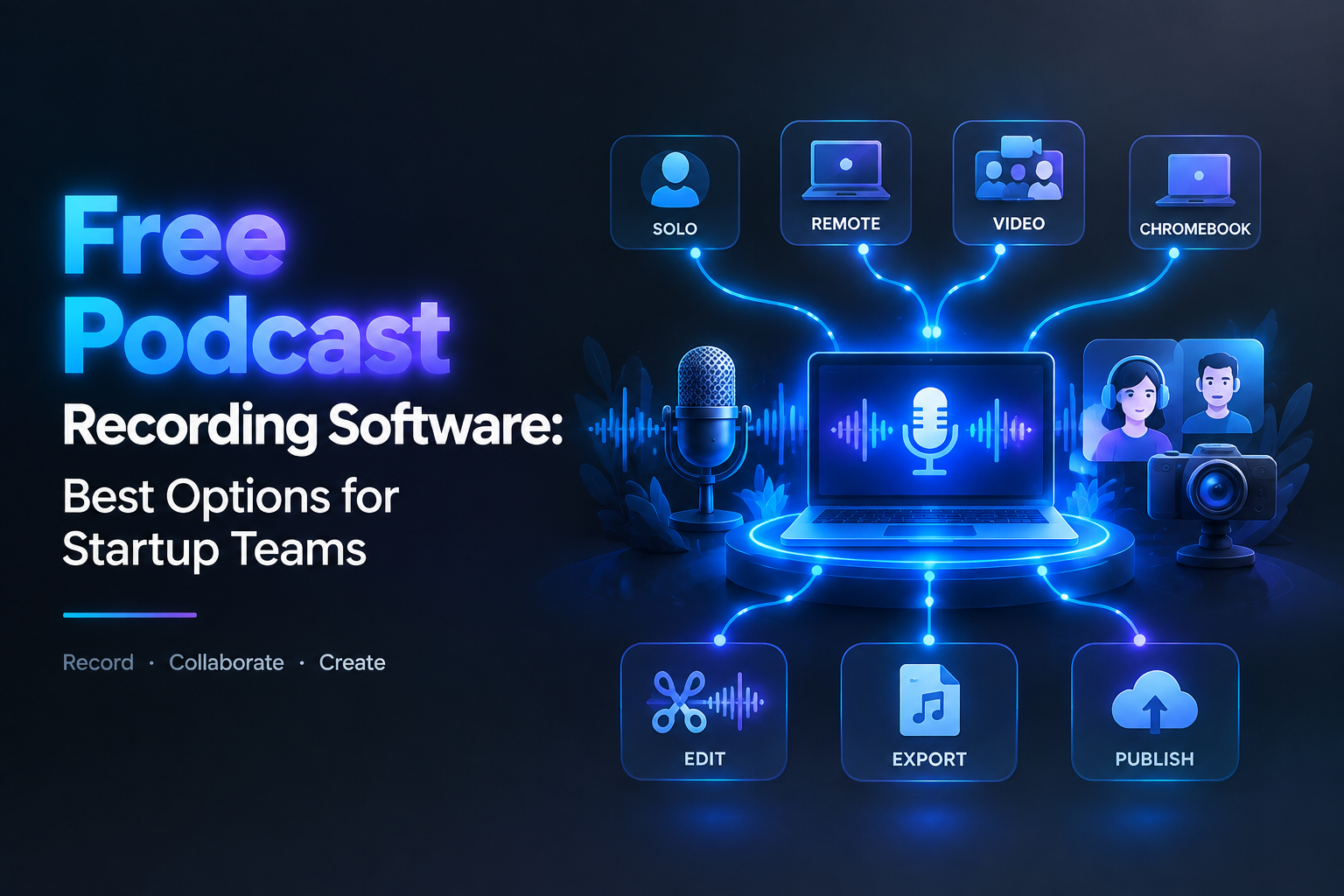
Quick answer: which free podcast recording software should you choose?
| Workflow | Best starting point | Why | Watch carefully |
|---|---|---|---|
| Solo, local, audio-only | Audacity | Free desktop recording, editing, and export | Manual setup and no built-in guest studio |
| Browser-first speech recording | Adobe Podcast Studio | Low installation friction and speech-focused tools | Free projects and downloads are limited |
| Remote interviews | Riverside or a similar browser studio | Guest links and separate-track recording | Verify the current free multitrack allowance |
| Free hosting and distribution | Spotify for Creators | Free hosting, distribution, audio/video uploads, and analytics | It is not a complete desktop editor |
| Chromebook team | Browser recorder plus online editor | Avoids traditional desktop installation | Browser permissions, network, storage, and export limits |
| Video experiment | Video-capable browser studio | Combines camera capture with guest access | Watermarks, resolution, file size, and storage |
How we evaluate free podcast recording software
We use six practical criteria instead of counting features:
- Capture reliability: Can the software select the right microphone, monitor levels, and recover usable files?
- Workflow fit: Is it designed for solo recording, remote guests, video, or publishing?
- Editing control: Can you remove mistakes, balance speakers, clean noise, and export a master?
- Portability: Does it work on Windows 10, macOS, Linux, Chromebook browsers, or mixed devices?
- Free-plan reality: Are recording time, project duration, downloads, storage, resolution, or exports restricted?
- Ownership and privacy: Can your team retain original files and understand how cloud or AI processing works?
Our most important buyer rule is simple: evaluate the exported files, not the feature list. A tool that records for free but prevents you from downloading the original tracks may be unsuitable for a customer interview. A platform with unlimited hosting may still require another application to edit the episode. Separating those jobs makes the decision clearer.
Best free podcast recording software by workflow
Best for solo audio recording: Audacity
Audacity is the clearest starting point when “free” means a desktop application that does not require a subscription. Its official site describes it as free, open-source recording and editing software, and its FAQ says it is available for Windows, macOS, and Linux. The project also states that it remains free for everyone. See the official Audacity overview and Audacity FAQ for the current licensing and platform information.
Audacity is a strong fit for:
- Solo podcasts recorded with a USB microphone or audio interface.
- Narrated explainers, voiceovers, and internal company shows.
- Teams that want local project files rather than mandatory cloud storage.
- Editors who need multitrack arrangement, clip editing, effects, mixing, and export.
- Windows 10, Windows 11, macOS, and Linux users.
Its weakness is collaboration. Audacity does not create a remote recording room where guests join from a link. You must record locally, receive files from guests, or use another service for capture before importing the tracks. It also requires more hands-on work than a browser editor: microphone selection, track management, noise reduction, compression, fades, and export settings are your responsibility.
Verdict: Choose Audacity if the show is mostly local and audio-only. It is also the most direct answer to “Is Audacity actually free?” Yes, the core application is free and open source. Avoid unofficial mobile apps and distinguish the desktop application from optional cloud products or third-party add-ons.
Best for browser-based recording and speech cleanup: Adobe Podcast Studio
Adobe Podcast Studio is designed for browser-based recording and speech-oriented production. It can suit a small team that wants contributors to record without installing a traditional digital audio workstation.
Adobe’s current plans page is important because it makes the free limits explicit. The free Studio plan allows projects up to 30 minutes and limits downloads to two projects per day; it also does not provide downloads of original speaker-separated recordings. Adobe lists higher limits and original-recording downloads as paid-plan capabilities. Review the current Adobe Podcast plan details before building a recurring workflow around it.
Adobe Podcast makes sense when:
- Your contributors use different operating systems.
- Guests need a simple browser workflow.
- Fast speech enhancement matters more than detailed manual mixing.
- You record short segments, voiceovers, or test episodes.
Its free limits make it less attractive for long interviews or teams that need archival masters. Automated enhancement can also change a voice or create artifacts, so record a short sample and compare the processed result with the original before committing a full episode.
Best for free hosting and publishing: Spotify for Creators
Spotify for Creators is primarily the publishing layer of a podcast stack. Spotify currently promotes free hosting, distribution, audio and video uploads, analytics, comments, and monetization features subject to eligibility and market availability. Its official feature page says creators can host for free and distribute beyond Spotify. See Spotify for Creators’ current podcast features.
It is useful when a startup needs to:
- Host a show without immediately paying for podcast distribution.
- Upload edited audio or video episodes.
- Manage show information and publishing from one account.
- Review audience and episode analytics.
Do not confuse hosting with recording. You may still need Audacity, a browser recorder, a camera application, or a video editor to create the final episode. Spotify for Creators can be the publishing destination while another product handles capture and post-production.
Best for remote interviews: a browser studio with separate tracks
For remote recording, the most valuable feature is not the guest invitation link. It is the quality and ownership of the resulting files. Separate audio tracks let you lower one speaker, remove a keyboard sound, or repair an interruption without damaging the other person’s recording.
Riverside’s current help documentation says its free account includes unlimited studio recording time, unlimited editing, and unlimited exports of edits and clips. It also says that separate high-quality track downloads are available for the first two hours of recorded content on the free plan. That distinction matters: “unlimited recording” does not mean unlimited access to high-quality isolated files. Verify the account-specific offer before a critical interview using Riverside’s free-account documentation.
Evaluate any remote recorder against these questions:
- Does each participant receive a separate audio file?
- Are files captured locally, uploaded progressively, or created only from the live call?
- How many hours of high-quality tracks can be downloaded for free?
- Is video watermarked or resolution-limited?
- Can guests join without creating an account?
- What happens if a guest loses connection during the recording?
For a step-by-step process, use our guide to recording remote podcast interviews for free.
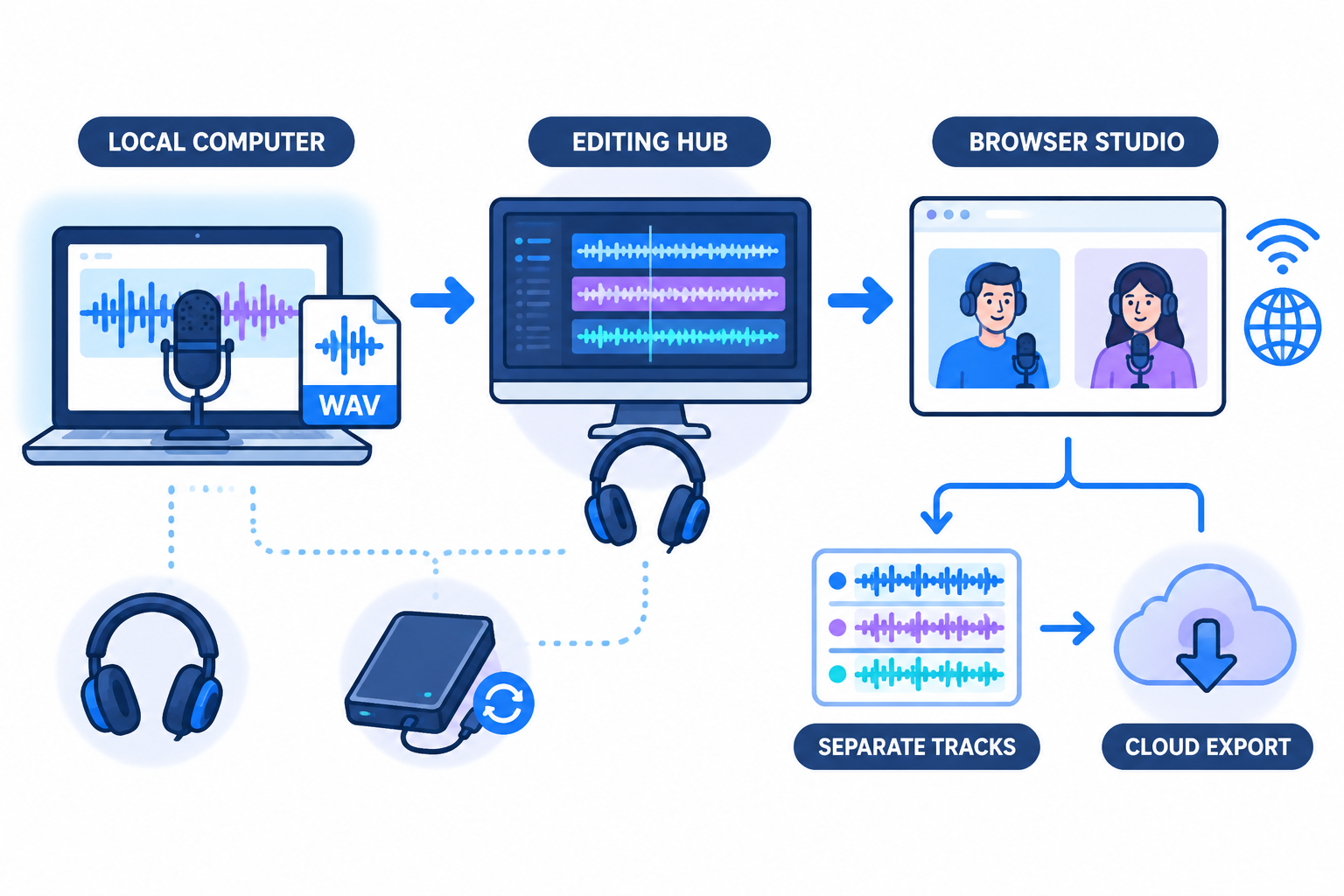
Local versus browser recording
Choose local recording when control and ownership matter
Local software records to the computer in front of you. That makes it attractive when you want predictable access to project files, the ability to work offline, and control over archives. You can retain original WAV files, move projects between editors, and avoid a recurring cloud-storage dependency.
The tradeoff is operational responsibility. You must select the input device, monitor levels, prevent clipping, manage backups, and coordinate each participant’s recording. Local capture can sound excellent, but it does not solve remote guest logistics.
Choose browser recording when coordination is the bottleneck
Browser tools reduce installation friction and make guest participation easier. Some combine recording, editing, captions, clips, and publishing in one workspace. That convenience can be more valuable than advanced effects when a marketing team produces occasional customer interviews.
The tradeoffs include account dependence, upload time, changing plan rules, privacy questions, and browser variability. Test microphone permissions, headphones, camera access, and file downloads before recording a high-value guest.
The practical decision is not “desktop versus browser” in the abstract. Ask which risk your team can manage more easily:
- Local risk: setup errors, missing backups, and inconsistent guest files.
- Browser risk: plan restrictions, cloud dependence, upload failures, and changing terms.
Does the software support remote guests?
Remote guest support should be judged by the final files, not the invitation experience. A polished guest interface is useful, but isolated tracks are what preserve editing control.
Before recording, ask the guest to complete a short sound check. Confirm that the correct microphone is selected, the input meter moves, headphones are connected where possible, and the room has limited echo. A 20-second test can expose a muted microphone, laptop fan, Bluetooth delay, or browser permission problem before the interview begins.
For equipment decisions that affect remote quality, read our mic quality test guide. It explains what to listen for before recording a full episode.
Audio-only versus video podcast needs
Audio-only production is simpler because the workflow concentrates on microphone capture, editing, mixing, and export. Video adds cameras, lighting, framing, synchronization, storage, captions, thumbnails, and platform-specific versions.
If video is part of the plan, confirm that the software supports:
- Camera and microphone selection for each participant.
- Separate audio and video tracks where available.
- Original-file downloads without a permanent watermark.
- Screen sharing or presentation capture if required.
- Captions, crop, layout, and short-form exports.
- A resolution suitable for your publishing destination.
A free video workflow can be useful for validating a show concept, but video multiplies storage and review time. Decide whether video is the main product, a YouTube destination, or simply a source of promotional clips. If the business only needs clips, an audio-first workflow with occasional camera capture may be more efficient.
Read our focused guide to free podcast recording software with video before choosing a camera-first format. For hardware planning, see the small-business podcast video equipment guide.
Recording, editing, export, and collaboration features
Recording
At minimum, the software should let you select the correct microphone, monitor input levels, save a recoverable project, and stop safely. For interviews, add separate-track capture, guest testing, and automatic or progressive uploads where possible.
Editing
Basic podcast editing includes removing mistakes, tightening long pauses, adjusting clip gain, reducing distracting noise, adding music, and balancing speakers. The tool does not need cinema-grade features, but it should make undo, non-destructive edits, and file replacement straightforward.
If your team prefers a browser-based workflow, use our guide to editing podcast audio online for free to compare convenience with control.
Export
Confirm the export formats before you record. A sensible production pattern is to keep an uncompressed master for archive and create an MP3 for podcast hosting. Video teams may need a full-resolution master, a captioned version, and vertical clips.
Export restrictions can matter more than recording duration. Check for:
- Maximum project or file duration.
- Daily download limits.
- Watermarks or branded audiograms.
- Reduced audio or video quality.
- Access to original speaker-separated files.
- Expiration dates for cloud projects.
Collaboration
Collaboration does not always require an advanced workspace. A small team may only need a shared folder, consistent file names, comments in a project tracker, and a clear owner for final approval.
Use a repeatable structure such as:
- 01 Raw recordings
- 02 Project files
- 03 Music and assets
- 04 Review exports
- 05 Final masters
- 06 Published clips
Platform compatibility: Chromebook, Windows 10, and mixed teams
Chromebook
Chromebook users should begin with browser-based tools because traditional desktop audio applications may not be available in the same way as on Windows or macOS. Check browser permissions, headphone support, upload stability, and whether original recordings can be downloaded.
Our dedicated guide explains how to record a podcast on a Chromebook for free, including practical limitations that feature lists often omit.
Windows 10
Windows 10 teams should verify current operating-system support, microphone drivers, browser compatibility, and company security policies. Audacity’s current FAQ lists Windows 10 and Windows 11 as tested compatible systems, while its Windows download page provides the current compatibility notes. See the Audacity compatibility FAQ and Audacity Windows download page.
For a focused checklist, see free podcast recording software for Windows 10. Also check whether security policies block desktop installation, browser microphone permissions, cloud uploads, or third-party plugins.
Free-plan limits and privacy questions
“Free” can describe four different models:
- Free and open source: The core application can be installed and used without a subscription.
- Free tier: The service works at no cost but restricts hours, storage, exports, resolution, or features.
- Free trial: Full or partial access lasts for a defined period.
- Free publishing: Hosting or distribution is free while recording and editing happen elsewhere.
Write the exact restriction into your production plan. For example, Adobe’s free Studio plan limits project duration and downloads, while Riverside’s free documentation distinguishes unlimited studio recording from a two-hour allowance for separate high-quality tracks. Those are very different limitations, even though both products may be described as free.
Privacy is equally important. Ask:
- Where are recordings stored?
- How long are projects retained?
- Are audio, video, or transcripts processed by AI?
- Can administrators delete guest data?
- Can the team export all original files before closing an account?
- Does the provider’s current privacy policy permit product-improvement processing?
Do not upload confidential customer interviews, unreleased product information, or sensitive personal data until the team has reviewed the provider’s current terms and privacy documentation.
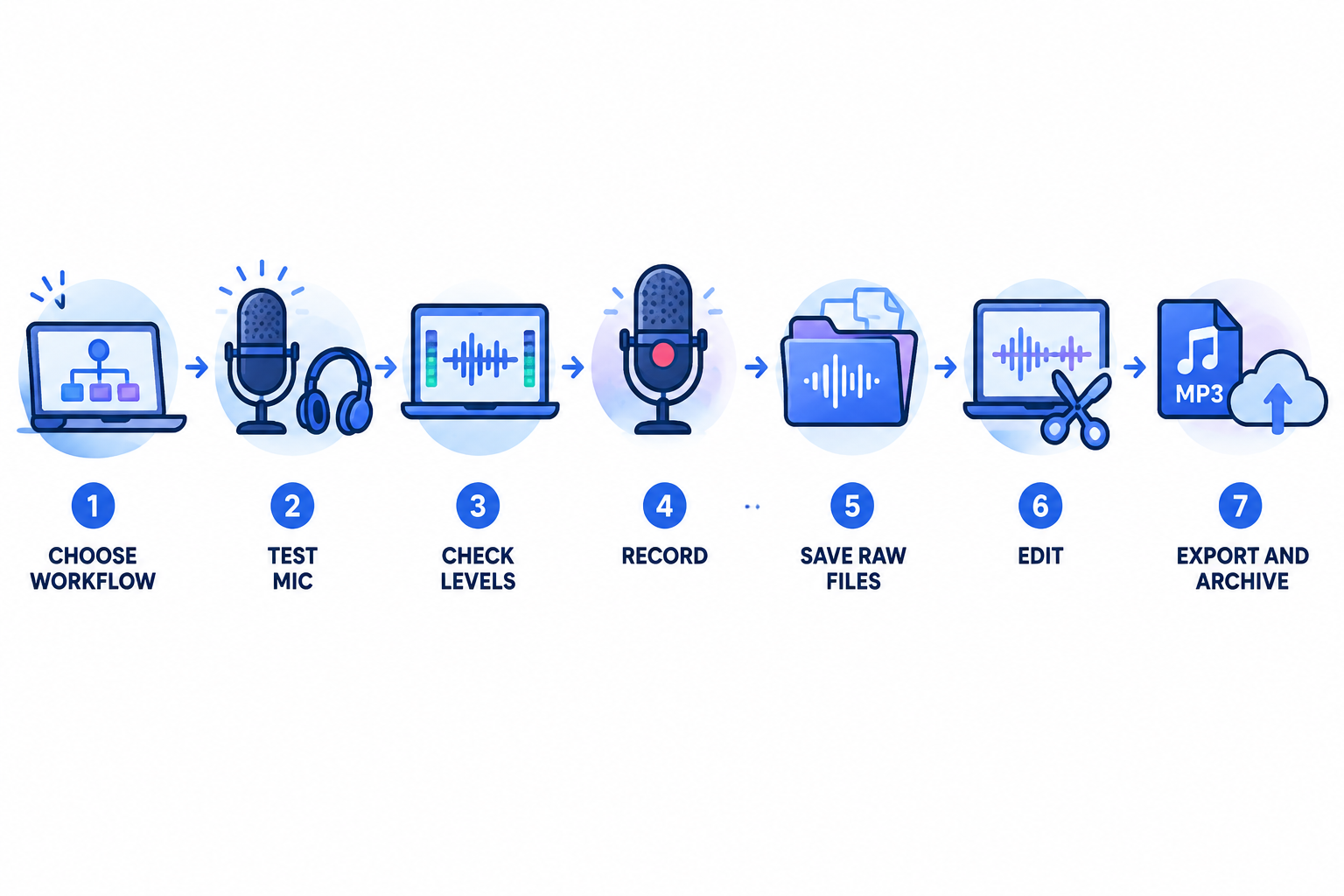
How to record your first episode for free
- Choose the production type. Decide whether the episode is solo, co-hosted, remote, audio-only, or video-first.
- Select the simplest matching tool. Use Audacity for local audio, a browser studio for remote guests, and a hosting platform only after editing.
- Test the microphone. Record 20 seconds and listen for clipping, echo, hum, fan noise, and room reflections.
- Confirm storage. Leave room for raw files, project files, and final exports.
- Record a short backup. Check that the correct microphone and tracks are being captured.
- Save the original. Keep the raw recording before aggressive enhancement or noise reduction.
- Edit for clarity. Remove obvious mistakes and distractions without cutting every natural pause.
- Export and review elsewhere. Listen on headphones and ordinary laptop or phone speakers.
- Archive the project. Store raw tracks, project files, the final master, show notes, and artwork together.
If you are still assembling the physical setup, use our first-recording equipment setup guide to avoid common connection and microphone-placement mistakes.
Comparison table: which free podcast recording software fits your team?
| Team scenario | Best starting category | Why it fits | Main caution |
|---|---|---|---|
| Solo founder recording locally | Audacity | Free desktop capture, editing, and export | Manual setup and no built-in remote studio |
| Short browser-based voiceover | Adobe Podcast Studio | Low installation friction and speech-focused workflow | Free project duration and download limits |
| Remote customer interview | Browser studio with isolated tracks | Guest access and speaker-by-speaker editing | Verify free multitrack hours and downloads |
| Chromebook marketing team | Browser recorder plus online editor | Works around desktop installation limits | Network, browser, storage, and export dependency |
| Video podcast experiment | Video-capable browser studio | Camera, audio, and clips can share a workflow | Watermarks, resolution, storage, and file size |
| Free publishing stack | Recorder plus Spotify for Creators | Separates production from free hosting and distribution | Hosting does not replace recording or editing |
Recommendations by startup scenario
Choose Audacity when ownership and low ongoing cost matter
Audacity is the strongest baseline for a local, audio-first show edited by one person or a small internal team. It gives you durable project files, broad desktop compatibility, and control over the recording and export process.
Choose a browser recorder when guest coordination is the bottleneck
If onboarding guests consumes more time than editing, a browser studio may create more value than a deeper desktop editor. Confirm separate tracks, download access, and the actual free allowance before scheduling important interviews.
Choose video only when it has a clear business job
Video can support YouTube discovery, clips, demonstrations, and visual interviews. It also multiplies production work. Choose it when the company has a clear distribution or sales reason for video, not simply because the software includes a camera button.
Use a two-tool stack when one free tool creates compromises
A practical startup stack may be a browser studio for remote capture, Audacity for detailed audio cleanup, and Spotify for Creators for hosting and distribution. This is less elegant than an all-in-one platform, but it can preserve original files while keeping guest coordination simple.
Final verdict
Audacity is the dependable choice for free local audio recording and editing. Adobe Podcast Studio is useful for short browser-based projects, but its current free plan limits project duration and downloads. Riverside can work well for remote interviews when the free separate-track allowance is sufficient. Spotify for Creators is valuable for free hosting and distribution, but it should not be mistaken for a complete recording and editing application.
For most startup teams, begin with the smallest workflow that can produce a clean, repeatable episode. Record one complete test, export the final file, verify that the originals are recoverable, and measure where the process slows down. Upgrade only the step that is actually costing the team time.