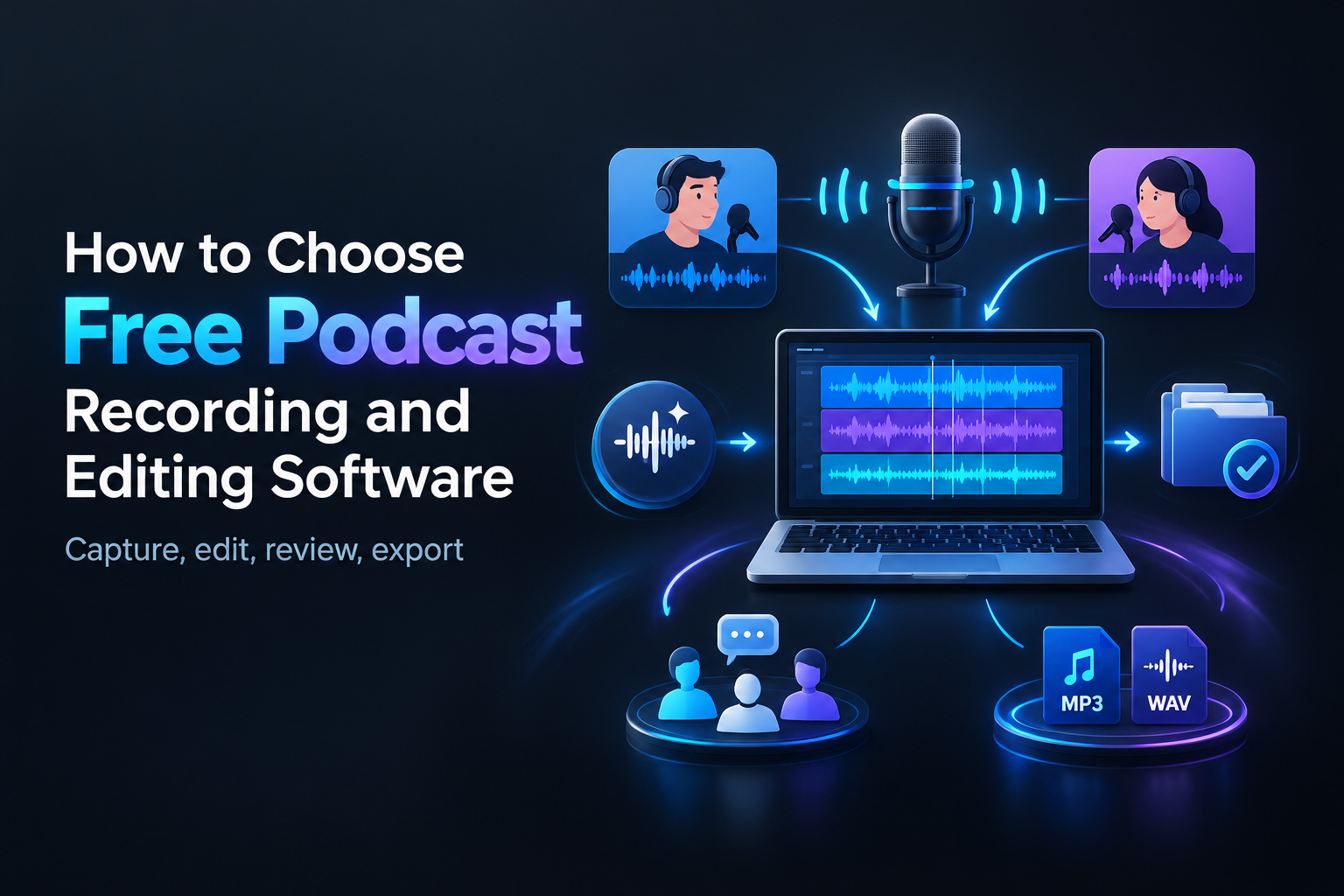
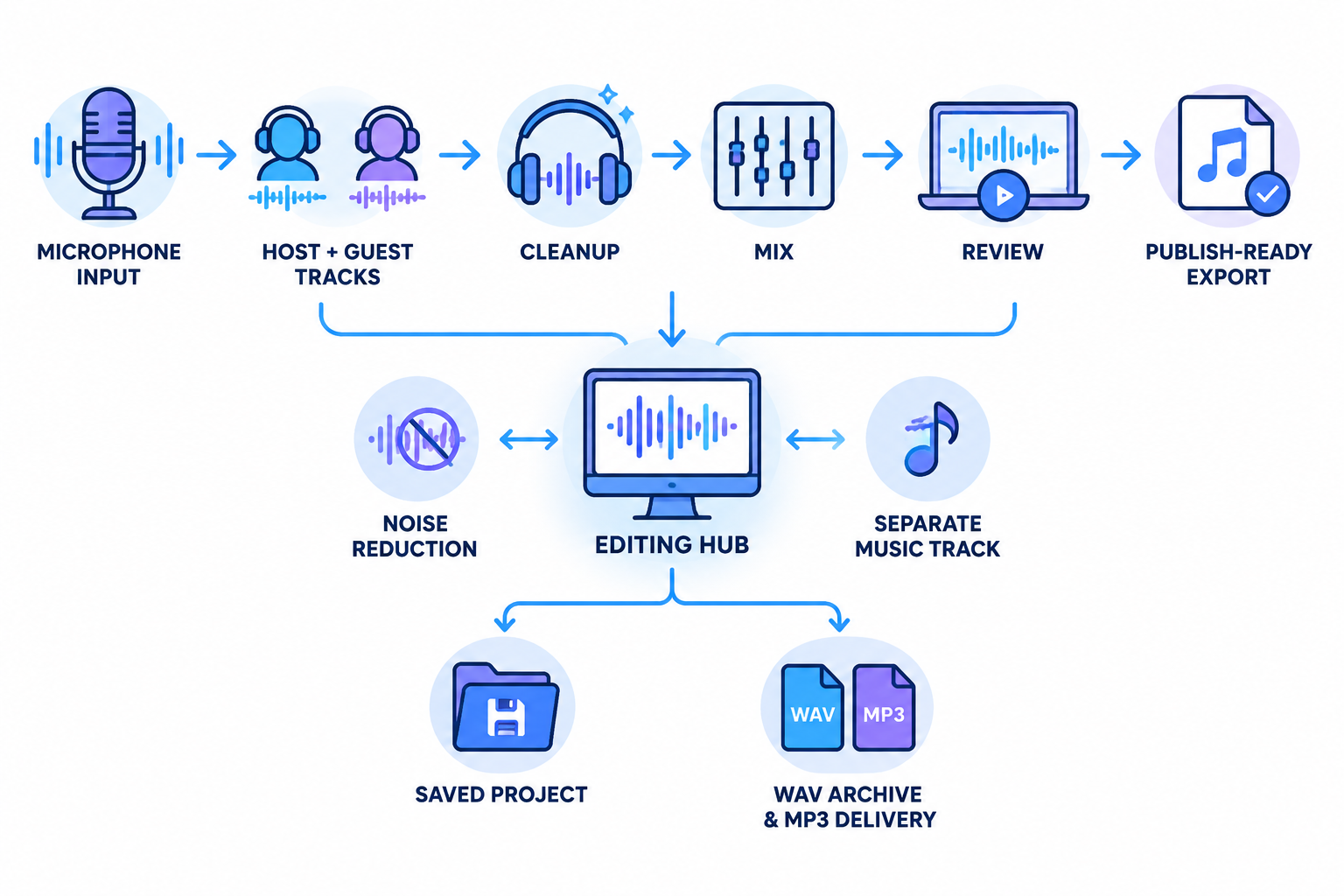
Choosing free podcast recording and editing software is not mainly a feature-counting exercise. The better question is whether one application can support your complete workflow: connect a microphone, capture usable audio, arrange separate tracks, clean spoken-word recordings, save an editable project, collect feedback, and export a publish-ready file.
That integrated view eliminates a common mistake. A free recorder may capture audio but provide weak editing tools. A free editor may handle multitrack production but leave remote interviews, file transfer, or team approval to separate services. Those gaps create extra exports, duplicated files, and more opportunities to publish the wrong version.
For many solo podcasters, educators, nonprofits, and small-business shows, Audacity is the first application worth testing. The project’s official pages identify it as free and open source, with desktop versions for Windows, macOS, and Linux, plus support for recording, editing, effects, and common audio formats. See the official Audacity product page and its FAQ on licensing and platform support for the current product description.
This guide does not present a generic list of podcast apps. Instead, it evaluates whether a free application can carry an episode from capture to publication with an acceptable amount of operational friction.
1. Define the full workflow before choosing software
Write down the path an episode follows before comparing applications. A useful workflow map includes:
- Capture: One local microphone, several microphones, or remote guests?
- Organization: Separate host, guest, music, advertisement, and room-tone tracks?
- Cleanup: Cuts, pauses, clicks, hum, background noise, EQ, compression, or level matching?
- Review: Does someone else need to listen, comment, or approve a specific version?
- Handoff: Is the recipient receiving a stereo mix, separate WAV files, or an editable project?
- Export: MP3 for delivery, WAV or FLAC for archiving, or both?
- Repeatability: Can the same folder, track, and export routine be repeated next week?
This list separates a basic recorder from a practical production tool. A useful free application should let you preserve separate tracks, revisit the project, make controlled edits, and create predictable exports.
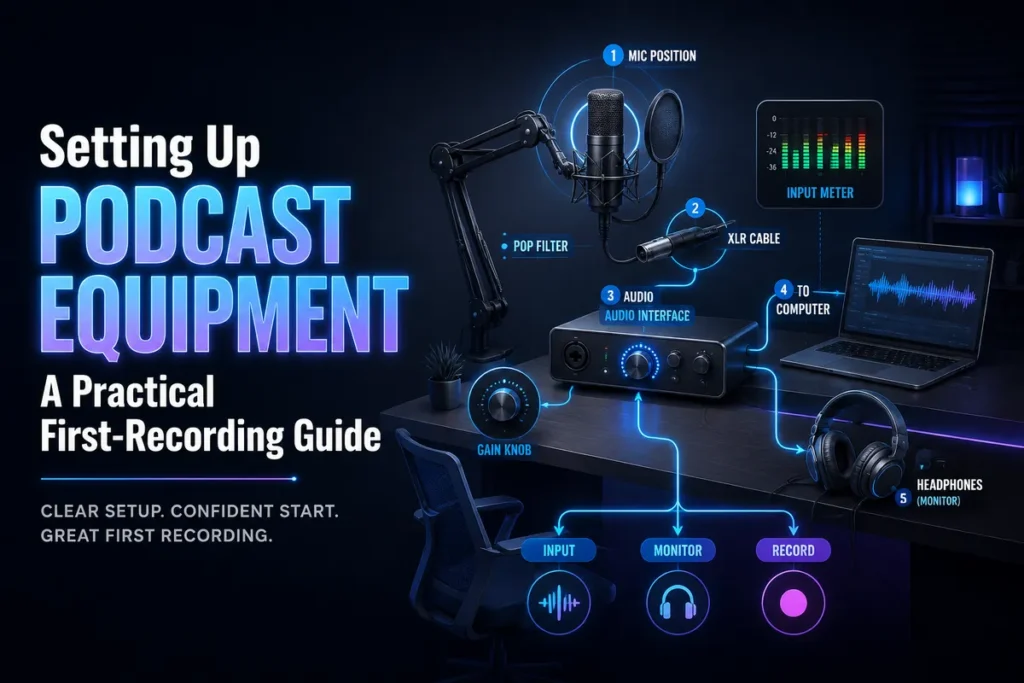
Hardware still matters. Software cannot fully repair an incorrectly selected input, a clipped recording, or a microphone placed too far from the speaker. Before judging an application, use Podtools’ first-recording setup guide to confirm the microphone and signal path.
The eight-step one-app test
Give each candidate the same small test project:
- Record a short host track.
- Import or record a second voice.
- Add intro music on its own track.
- Cut a mistake while keeping the other tracks aligned.
- Silence or reduce a short unwanted noise.
- Adjust speech and music independently.
- Save and reopen the editable project.
- Export both a delivery file and a high-quality archive.
If the application handles all eight steps without requiring a paid upgrade or an awkward workaround, it is a credible option for a basic show.
2. Recording features that matter
Input selection and level visibility
Look for clear controls for the input device, channels, sample rate, and monitoring. You should be able to verify that the application is using the intended microphone or audio interface rather than a laptop microphone.
Input meters are more useful than a visually impressive waveform. Record a short test, speak at your normal distance, listen through headphones, and check the loudest moments. Leave enough headroom for laughter, emphasis, or an unexpectedly loud guest instead of trying to make the waveform as large as possible.
For a separate source check, use Podtools’ mic quality test for podcast recordings. This helps distinguish a software problem from a microphone, room, or gain problem.
Single-track versus multitrack work
Multitrack editing is one of the most important requirements for podcast production. Separate tracks let you change the host, guest, music, and advertisements independently. They also make it possible to remove one speaker’s mistake without unnecessarily changing another speaker’s timing.
Audacity’s multitrack manual confirms that separate sounds can be placed on different tracks, adjusted individually, and played together. Its Sync-Lock function can keep related tracks aligned when you cut or paste material. Read the Audacity multitrack editing documentation for the specific track and synchronization behavior.
There is an important distinction: multitrack editing is not the same as remote multitrack recording. A desktop editor can be excellent at arranging files after an interview while still being inconvenient for capturing distributed guests. If remote interviews are central to your show, compare the recording service and the editor separately. Podtools’ free remote podcast recording guide covers that different use case.
3. Editing features for spoken-word shows
Podcast editing usually benefits more from dependable speech tools than from a huge music-production feature set. Prioritize functions that improve clarity while preserving a natural delivery.
The essential spoken-word toolkit
- Cut and trim: Remove false starts, repeated phrases, and unusable sections.
- Silence or mute: Reduce a cough, interruption, or distracting pause without deleting the surrounding timing.
- Undo and redo: Test a change without permanently damaging the working project.
- Track gain or envelopes: Balance quiet and loud sections without changing every other track.
- Noise reduction: Reduce steady sounds such as fan or HVAC noise when the source recording supports it.
- EQ: Correct excessive boom, muddiness, or thinness carefully.
- Compression and limiting: Control large volume swings and reduce the risk of peaks clipping.
- Labels or markers: Record ad points, edit questions, chapter candidates, and review notes.
Audacity’s official getting-started documentation covers recording, cutting, trimming, silencing, undo, effects, saving, and exporting. Its noise-reduction guidance also warns that processing cannot substitute for a quiet recording environment and that overly aggressive settings can create audible artifacts. Compare the Audacity getting-started workflow with the official noise-reduction guidance.
A repeatable editing order is often more valuable than an extensive effects library:
- Back up the original recordings.
- Remove obvious mistakes and unusable sections.
- Reduce distracting noise only where necessary.
- Balance speakers with clip gain or track volume.
- Apply light EQ and compression.
- Add music and advertisements on separate tracks.
- Listen through the complete mix before exporting.
For a broader category comparison, see Podtools’ podcast editing software roundup. The decision here is narrower: can the free workflow handle your actual episode without creating more work than it saves?
4. File formats and project portability
A free application should be judged by what happens when the episode leaves it. A finished MP3 is portable. An editable project may depend on the original application, its version, and the associated media files.
Save the project and export the audio
Keep two types of deliverables:
- Editable project: The native file containing tracks, edits, labels, and project settings.
- Rendered audio: A WAV, FLAC, MP3, or other file that another application can open.
Audacity’s support documentation explicitly distinguishes saving a project from exporting audio. Saving preserves the working project for later editing, while exporting creates an audio file for sharing or use elsewhere. The same documentation advises keeping active projects on storage with fast, uninterrupted access and avoiding external, USB, or network storage for active work. See Audacity’s saving and exporting documentation.
This distinction matters during team handoff. If another editor uses compatible Audacity files and has all associated media, a project handoff may work. Otherwise, export separate WAV tracks or stems and include a note explaining their order, sample rate, version, and intended use.
Use a predictable episode folder
01-original-recordings02-edit-project03-music-and-assets04-review-mixes05-final-exports
Name files with the episode number, source, and version—for example, ep-042-host-edit-v03.wav. Avoid names such as final-final2.mp3. Version naming is a simple but effective substitute when free software does not provide robust approval history.
5. Collaboration and review
Collaboration is where many free desktop editors become less convenient. The application may be capable, but the team still needs a method for file transfer, comments, approvals, and version control.
Define the handoff
- Listen-only review: A co-host listens to a compressed draft and sends timestamped notes.
- Audio handoff: A producer receives a stereo mix or separate WAV tracks.
- Project handoff: Another editor opens and continues the native project.
- Approval handoff: A client approves the exact version that will be published.
A free editor can support the first two with exported files. The third requires compatible software, organized media, and careful transfer. The fourth requires unambiguous filenames so an approved draft cannot be confused with an earlier review mix.
A lightweight review process
- Export a compressed review mix with a version number.
- Share it from one consistent folder.
- Collect comments with timestamps, such as “12:43—remove the repeated sentence.”
- Make changes in the master project, not in the flattened review file.
- Export a new version and record what changed.
- Archive the approved master and project folder.
Audacity also documents optional cloud saving and collaboration through its online companion, while the desktop workflow remains centered on local editing. Treat that as an additional service rather than assuming every collaboration feature is part of the free desktop application. The current details are in Audacity’s project-saving support documentation.
6. Exporting a publish-ready master
Export is where a multitrack project becomes the file your podcast host, RSS workflow, client, video editor, or archive receives. Select the format based on the destination rather than using one setting for every purpose.
Delivery file versus archive file
- WAV or FLAC: A high-quality archive for future edits and repurposing.
- MP3: A compact delivery file when your podcast host accepts it.
- Separate stems: Host, guest, music, advertisements, or narration tracks when another producer needs control.
- Text notes: Episode title, version, duration, export settings, and approval status.
Audacity’s export manual explains that the application can create mono or stereo mixdowns, export multiple files, and select formats and encoding options. Its support documentation also notes that mono is appropriate when directional stereo information is unnecessary, such as a simple voice recording. Read the Audacity Export Audio manual and the saving and exporting support page before standardizing your show’s settings.
Do not assume that a successful export is automatically correct. Open the actual exported file and inspect the beginning, middle, transitions, loudest sections, ad insert points, and ending. Check for clipping, missing channels, unexpected silence, music that masks speech, and level changes between speakers.
After the audio is approved, Podtools’ guide to fixing podcast RSS feed errors can help with the publishing stage, including enclosure and feed-related problems.
7. A practical shortlist scorecard
Score each candidate from 0 to 2:
- 0: Missing or impractical.
- 1: Available, but dependent on extra tools or workarounds.
- 2: A clear fit for your recurring workflow.
| Criterion | Question | Why it matters |
|---|---|---|
| Local recording | Can it select the correct microphone and show usable levels? | Prevents avoidable capture problems. |
| Multitrack editing | Can voices, music, and ads remain independently adjustable? | Supports flexible spoken-word production. |
| Basic cleanup | Can you cut, silence, reduce noise, EQ, and compress? | Covers common conversational-show needs. |
| Project saving | Can you reopen the episode with tracks and edits intact? | Protects unfinished work and future revisions. |
| Portability | Can you export common formats or separate tracks? | Makes handoff and repurposing easier. |
| Remote workflow | Does it record distributed guests, or will you need another service? | Prevents a mismatch between capture and editing. |
| Review | Can collaborators receive a clear draft and timestamped comments? | Reduces version confusion. |
| Repeatability | Can the same folder, track, and export process be reused? | Improves operational efficiency as the show grows. |
Where Audacity fits
Audacity is a strong shortlist candidate when you want a free local application for recording, multitrack arrangement, spoken-word cleanup, project saving, and common exports. Its official materials support those core capabilities: the application is free and open source, runs on major desktop operating systems, supports multitrack editing, and can export formats such as WAV, MP3, and FLAC.
Its weaker fit is operational rather than purely technical. If your show depends on browser-based guest access, automatic remote backups, built-in client commenting, or a nontechnical approval team, a dedicated recording or collaboration service may reduce friction. You can still use Audacity as the editing and mastering stage.
So, what is the best free podcast recording and editing software?
For one free application that covers the most important local podcast workflow, Audacity is the most practical starting point. The conclusion is based on workflow fit—not on a claim that it is ideal for every show. Its official documentation verifies the combination of free licensing, desktop recording, multitrack editing, project saving, effects, and common audio export.
Choose it when you record locally, want direct control over tracks and files, and can manage review through folders and exported drafts. Consider a hybrid workflow when remote guests or client collaboration are central: capture remotely, then edit and export in a free desktop application.
The best free workflow is the one you can repeat without losing recordings, confusing versions, or weakening the final master. Test a short sample episode before committing. Record, edit, save, hand off, export, and listen to the exported file again. If the complete path works from microphone to publish-ready audio, you have found a useful production system—not merely a free download.