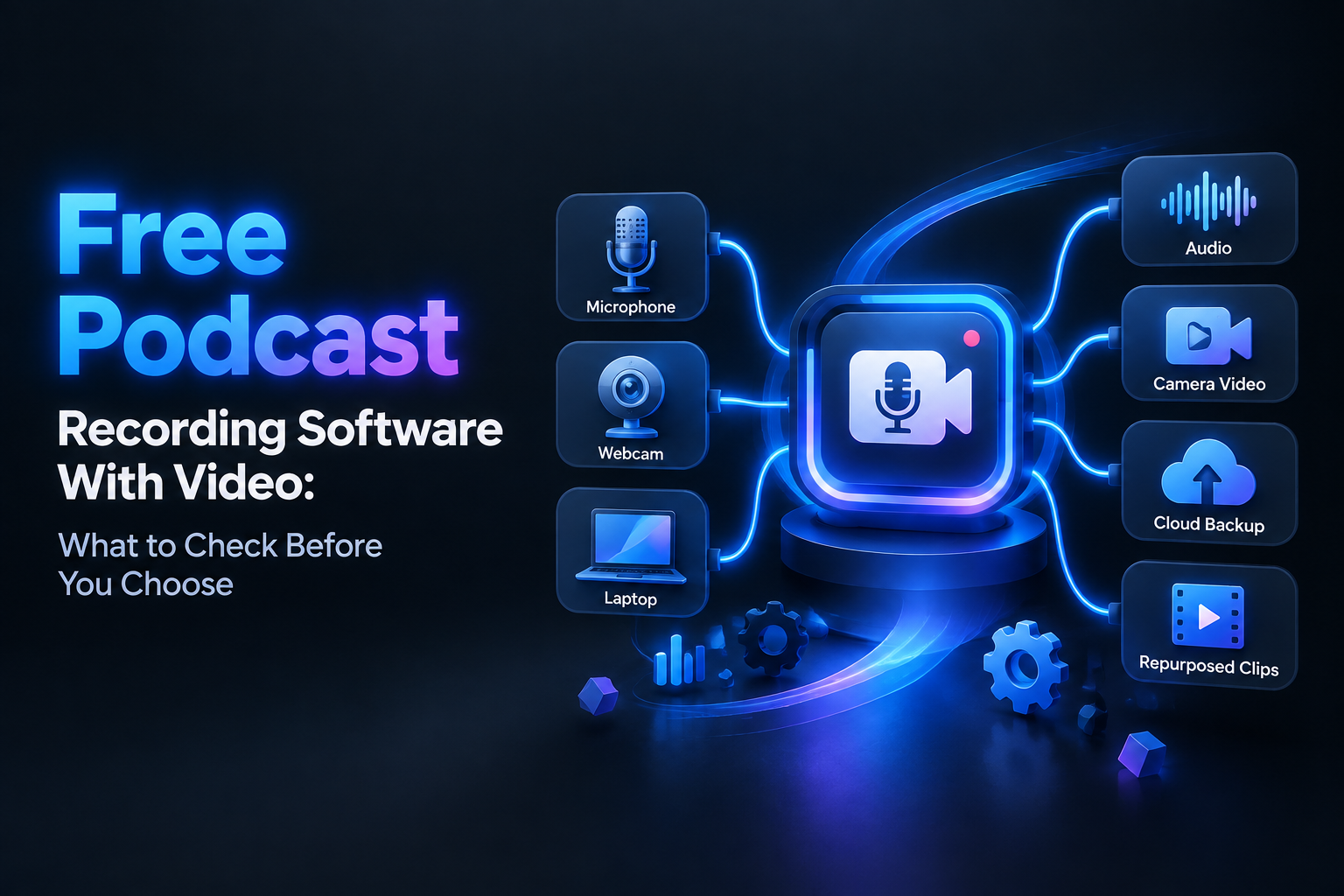
Choosing free podcast recording software with video means evaluating the entire production workflow—not simply checking whether an app has a record button. A free plan may include video recording but restrict high-quality downloads, isolated tracks, resolution, storage, guests, captions, or branding. Those restrictions often appear only when you try to edit and repurpose a real episode.
This guide focuses on software tradeoffs for small podcast teams: camera quality, separate audio, local versus cloud capture, guest layouts, screen sharing, storage, privacy, and repurposing-ready exports. It does not replace a hardware buying guide. If you still need to choose microphones, cameras, or interfaces, start with the small-business podcast equipment buying guide.
1. When is video recording worth the extra complexity?
Video is usually worth adding when one conversation can support several publishing goals. A single interview can become a full YouTube episode, an audio podcast, vertical clips, captioned excerpts, a transcript, and written content. The value is not merely having a moving version of the podcast; it is having more usable source material.
Video also creates additional failure points. Your team must manage camera permissions, framing, lighting, bandwidth, guest devices, storage, layouts, captions, and export settings. Editing may involve several camera angles instead of one audio timeline.
Video is usually worthwhile when:
- Your guests are comfortable appearing on camera.
- You plan to publish on YouTube, LinkedIn, Instagram, or another video-first channel.
- Your subject benefits from facial expression, demonstrations, screen sharing, or visual references.
- You want short clips that show the speaker instead of using a static audiogram.
- Your software can create isolated audio and video files for each participant.
Audio-only may be more practical when:
- Your audience primarily listens and does not expect a video version.
- Guests have unreliable cameras, distracting environments, or limited upload capacity.
- Your team lacks time to edit multiple video formats.
- The free plan adds a watermark, limits resolution, or makes high-quality downloads difficult.
A practical compromise is to record video for selected interviews rather than every episode. Keep the format simple: a two-person layout, clean audio, captions, and a few vertical excerpts. This preserves the visual material that makes video useful without turning every episode into a full video-production project.
2. What audio and camera requirements should you check?
Video software cannot fully compensate for poor inputs. A platform may advertise high-resolution recording, but a distant microphone, harsh lighting, unstable webcam, or poorly positioned camera will still weaken the finished episode. Evaluate the input and file quality your team actually needs.
Audio requirements
Look for software that lets each participant select a specific microphone and records each speaker on a separate track. Isolated tracks allow an editor to adjust volume, reduce noise, remove interruptions, and correct one speaker without changing the entire conversation.
For example, Riverside’s documentation says its high-quality participant tracks are recorded locally on each participant’s device and can be downloaded as separate MP4 video or WAV audio files. Its cloud recordings are described as reference or backup files whose quality depends on the internet connection. See Riverside’s file-format explanation for the distinction.
Adobe Podcast Studio also advertises free audio and video recording, but its recording page identifies speaker-separated track downloads as a Premium feature. That distinction is important: “records video for free” does not necessarily mean “downloads separate source files for free.” Check Adobe’s official recording page before planning your editing workflow.
Use this audio checklist:
- Input selection: Can every participant choose the intended microphone instead of relying on the system default?
- Separate tracks: Does each speaker receive an isolated audio file?
- Source format: Can you download WAV or another suitable editing format?
- Backup behavior: Does the platform preserve a local or cloud backup if the live connection fails?
- Monitoring: Can the host and guest confirm that the correct microphone is active?
Do not treat “HD audio” as proof of isolated, uncompressed audio. A finished MP4 may contain compressed audio, while a separate WAV file gives the editor more control. For a repeatable pre-session check, use the podcast microphone quality test.
Camera requirements
For most interview podcasts, dependable 1080p video is more useful than a maximum resolution that the free plan does not export. Check whether the software preserves the camera’s aspect ratio, handles different guest resolutions, and allows cropping or repositioning without making faces look soft.
Also determine whether the saved video depends on the live internet connection. In a conventional video call, the preview may be compressed to keep the conversation moving. In a local-recording workflow, each device can capture a higher-quality source and upload it afterward. That distinction matters when a guest’s connection becomes unstable.
Before the session, ask every guest to confirm that the browser or app has camera and microphone permission, the camera is stable and near eye level, the selected microphone is close to the speaker, the device has free storage, and the recording tab will remain open until uploads finish.
For hardware context without confusing it with the software decision, see the guide to podcast video equipment for a small-business studio.
3. Local versus cloud capture: which is safer?
Capture method is one of the most important differences between recording platforms. In a cloud-first workflow, the service records the live call as it travels through the internet. In a local-recording workflow, each participant’s device captures the source and uploads it to the platform.
Why local recording is attractive
Local capture can preserve better source quality when the live connection fluctuates. Riverside explains that its high-quality tracks are recorded locally and are not affected by poor internet connection in the same way as live cloud recordings. The service also says those files are uploaded during or after the session. Read Riverside’s high-quality track documentation for the workflow details.
Local recording can also produce one file per participant, giving the editor more control over volume, timing, camera crops, speaker changes, and screen-share edits. However, it is not automatically risk-free. The device still needs enough storage, the browser or app must remain open, and the file must finish uploading.
Why cloud capture can still be convenient
Cloud capture can reduce setup friction. Guests may join through a browser, the host may avoid collecting files manually, and the service may provide a ready-to-share composite quickly. For occasional conversations or internal content, convenience can matter more than maximum source quality.
The tradeoff is that a poor connection, browser crash, or service interruption can affect the recording itself. “Recording stopped” is not necessarily the same as “all original files are backed up and ready to download.”
Questions to ask about capture:
- Is each person recorded locally, or only through the live call?
- Does the platform upload continuously or only after recording ends?
- Can the host see whether every participant’s upload is complete?
- What happens if a guest closes the browser before processing finishes?
- Can you download original files, or only an edited composite?
- Does the free plan limit local files, isolated tracks, resolution, or download time?
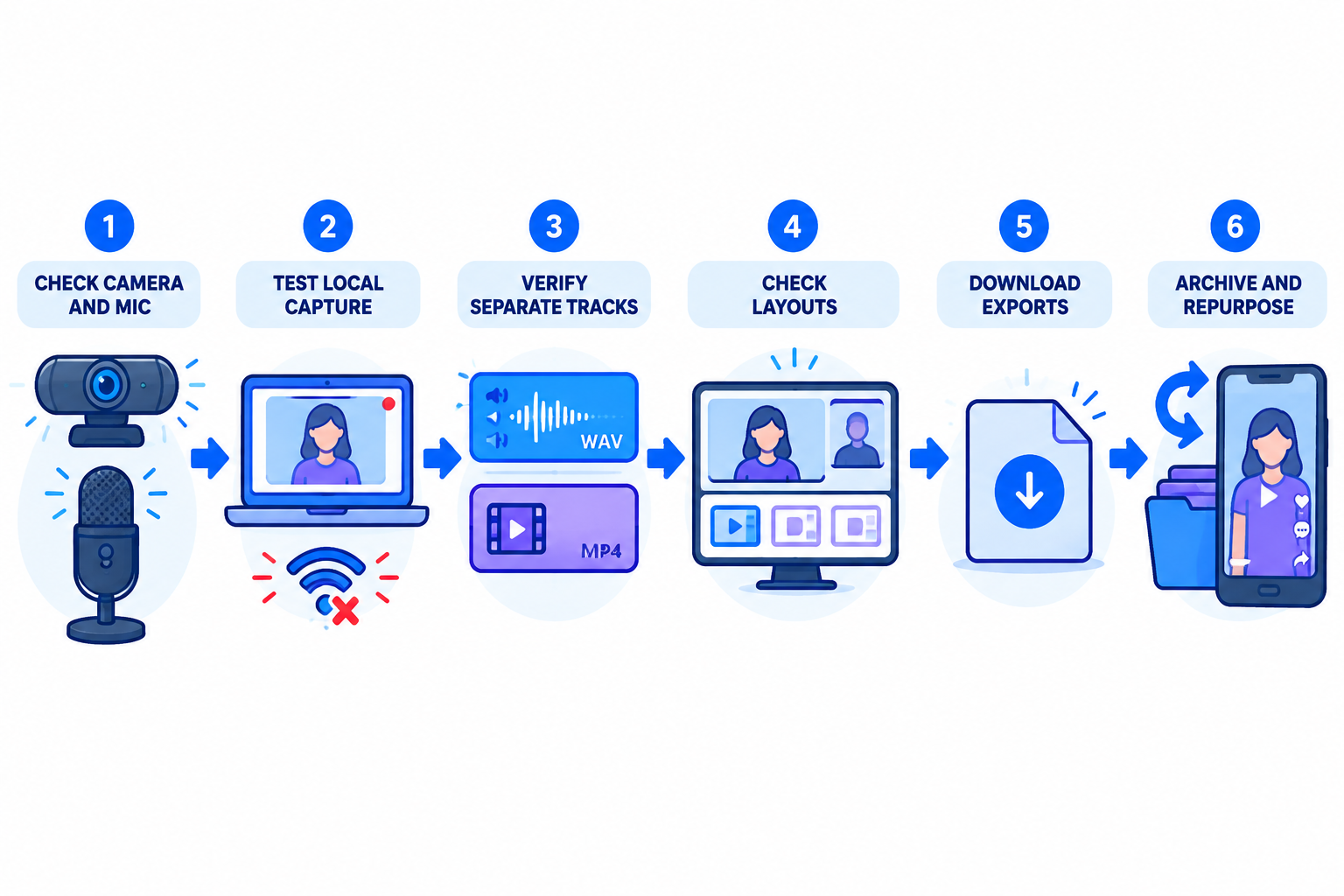
For a small team, the safest evaluation is a five-minute test with the exact number of guests and devices you expect to use. End the session, wait for processing, download every available file, and import them into your planned editor. This exposes restrictions more reliably than a pricing-page headline.
If your show will include remote guests, also review this guide to free remote podcast recording software as part of your planning.
4. What guest layouts and screen-sharing features matter?
Layouts affect editing flexibility, not just appearance. They determine whether the finished video feels like a conversation, presentation, reaction, or collection of disconnected webcam boxes.
At minimum, look for a clean two-person layout, a single-speaker view, and an option to show all participants. If the service supplies separate tracks, you may be able to change layouts during editing instead of committing to the live arrangement.
Useful layout features include:
- Speaker-focused views: The active speaker fills most of the frame while the other person remains visible.
- Side-by-side views: Both speakers stay on screen during interviews and discussions.
- Screen sharing: Presentations, product demos, charts, or documents appear alongside the speaker.
- Flexible cropping: Different camera shapes and resolutions can be aligned without awkward borders.
- Vertical reframing: A horizontal conversation can be adapted for short-form channels.
- Brand controls: Titles, colors, captions, or logos can be added without forcing platform branding.
Ask whether screen sharing is captured as its own source or baked into a combined video. A separate source is easier to edit: you can remove an unnecessary slide, replace a screen capture, or use the speaker’s camera alone in a short clip.
Guest limits require careful checking. A tool may support group recording while its free tier restricts participants, session length, isolated-track downloads, or high-quality exports. These limits can change, so verify the current plan immediately before building a recurring production schedule.
5. Which export formats and storage limits should you compare?
Recording software is only useful if it produces files that fit the rest of your workflow. Decide where the episode will go first, then work backward to the exports you need.
For an audio podcast
- Separate WAV files for mixing and cleanup.
- A final lossless master for archiving.
- An MP3 export for podcast hosting and distribution.
- A transcript or caption file if the platform provides one.
For YouTube or a video archive
- A full-length MP4 at a resolution appropriate to the source footage.
- Separate camera files when you want to re-edit angles.
- Screen-share files that can be replaced or resized.
- Captions that can be reviewed before publication.
For short-form repurposing
- Vertical or square reframing options.
- Speaker-focused crops that keep faces inside the safe area.
- Burned-in captions or downloadable subtitle files.
- Exports without an unavoidable watermark.
Riverside’s export documentation lists MP4 video, WAV audio, and MP3 audio options for edited recordings. It also notes that exported video resolution is limited by the participants’ cameras, even when the editor offers several export settings. See the official edits and clips guide.
Storage is easy to underestimate. Several separate video files can become large, especially when multiple guests record locally. A free service may provide limited cloud storage, a limited retention period, or a limited number of projects even when recording time appears unlimited.
Read storage terms alongside export terms. Riverside’s current pricing page, for example, lists its free plan with a one-off allowance for separate multi-track recordings, up to 720p video, 44.1 kHz audio, and a watermark. Those limits illustrate why a free recording feature should not be treated as a permanent production specification. Check the current Riverside plan comparison immediately before choosing a tool.
Download and archive the session on your own approved storage as soon as processing is complete. For audio planning, see the podcast MP3 file size calculator guide.
6. What privacy and branding checks belong on your shortlist?
Recording a guest means handling their voice, image, name, and potentially confidential business information. A free plan does not remove the need to understand how files are stored, shared, processed, and deleted.
Before using a platform for client interviews or internal discussions, review its privacy policy and recording controls. Check whether guests must create accounts, whether recordings are shared by default, how long files remain available, and whether automated transcription or AI features process the content.
Privacy questions to answer:
- Who can access the recording link?
- Can the host restrict downloads or disable public sharing?
- How are recordings deleted, and can deletion be confirmed?
- Are audio, video, or transcripts used to improve automated features?
- Does the storage environment meet your organization’s requirements?
- Can guests join without exposing unnecessary personal information?
Branding affects perceived quality. A watermark may be acceptable for a private test but distracting in a paid interview, client webinar, or public YouTube episode. Check free-plan restrictions on logos, platform intros, outro screens, captions, and export branding.
Do not confuse built-in branding with a complete visual identity. Consistent framing, readable captions, clear titles, and good audio generally matter more than decorative overlays. For later editing needs, compare the recording platform with the options in this podcast editing software guide.
7. A decision checklist for small teams
A small team does not need every feature. It needs a workflow that a host, guest, and editor can repeat without confusion. Score each free tool against your actual production process.
Recording and quality
- Does the tool record both audio and video?
- Can each participant select the correct microphone and camera?
- Are audio and video captured locally, or only through the live call?
- Does each participant receive isolated files?
- Can you test the workflow without publishing or paying?
Guests and production
- How many guests can join on the free tier?
- Can guests join from a browser without complicated installation?
- Are speaker layouts, screen sharing, and camera switching available?
- Can you change the layout after recording?
- Does the workflow support both remote and in-person recordings?
Exports and storage
- Can you download separate WAV audio files?
- Can you download separate video files?
- Are MP4, WAV, MP3, and caption exports available where needed?
- Does the free plan limit hours, high-quality files, resolution, or storage?
- How long are recordings retained?
- Can you export before a free-plan limit expires?
Privacy and branding
- Can you control recording access and download permissions?
- Are guests clearly informed that the session is being recorded?
- Does the free export include a watermark or branded introduction?
- Are automated transcripts, captions, or enhancement tools optional?
- Can your team delete recordings and manage account access?
Which type of free video podcast software is right for you?
Choose a local-recording browser studio if you interview remote guests and want isolated audio and video without asking everyone to manage complicated recording software. This is often the strongest fit for repurposing-ready files, but verify the free plan’s track, resolution, watermark, and storage limits.
Choose a desktop audio editor plus separate video capture if audio editing control matters more than convenience. Audacity’s official FAQ describes it as free, open-source recording and editing software for Windows, macOS, and Linux. Audacity is useful for audio production, but it is not a complete remote video podcast studio; you would need a separate video workflow.
Choose a simple video-call workflow if the show is occasional, internal, or primarily conversational. It may be fast to start, but confirm whether the recording is a single compressed file, whether separate tracks exist, and whether the result is good enough for editing.
Choose a hybrid workflow if you want simple remote video plus a reliable audio backup. Each participant can record a local audio file while the online platform handles shared video. This creates more file-management work, but it protects the most important part of the episode when the online recording is imperfect.
Final recommendation: test the whole workflow
The best free podcast recording software with video is the tool that produces files your team can actually use. Before choosing, run one realistic test with your usual host, guest count, microphones, cameras, browser, and editing software.
Record a short conversation, share a screen, switch layouts, stop the session, wait for every upload, download the original files, and create one audio export plus one vertical clip. Then ask:
- Was every important voice clean and adjustable?
- Did the video remain sharp and correctly framed?
- Could the editor access the files without a paid upgrade?
- Would the workflow remain manageable every week?
If the answer is yes, you have found a practical free starting point. If not, the problem is probably not the lack of another camera or plugin. It is a mismatch between the software’s free-plan limits and the way your team wants to record, edit, and repurpose the show.